How to Fingerprint Users

Apple vs? Google and the hidden war for your identity

Please read this first

I’m really low on money right now. My credit card is maxed out, and I only have US$36 in my bank accounts of this writing. I can’t afford food, medication, internet access, medical services, or the Bay Area’s rent. My rent was due on March 5th, and if it’s not paid within three business days after the 6th, they start the eviction process. My main goal is to be able to pay the exorbitant rent for one or two months and take care of my mental health needs until I have a steady income. Any help would be greatly appreciated. I have set up a GoFundMe here.

Any bounty I’m due for existing privacy leaks won’t arrive for months, if they arrive this year. See here¹ for more details.

The very best thing you could do for me is hire me! I could be improving your apps, frameworks, shared libraries, or almost anything else! Click here² to read why you need me!

A Baphy plushie surrounded by his emotional support capybaras

  1. Finding privacy leaks in iOS hasn’t been very profitable. I started discovering and reporting privacy leaks in iOS back in May 2025. I didn’t receive my first (and only) payment from Apple until December 30, 2025. I used it to cover two months of rent in January. The 13 leaks I’ve reported that haven’t been fixed yet are either unscheduled, scheduled for “Spring 2026”, or scheduled for “Fall 2026.” That means any new leaks or bugs I find that qualify for a bounty won’t be paid until at least October 2026, at the earliest. I just can’t wait that long, although I still keep searching for privacy leaks because privacy is extremely important to me.

  2. I'm currently seeking a contract job or a position involving either iOS or macOS. You can view my résumé and contact information on the About page. My specialty is discovering and fixing obscure bugs. This is what initially led me to work as a reverse engineer, trying to identify and work around bugs in Apple’s operating systems.

    Since May 2025, I’ve been developing a semi-automated iOS app that scans device and process memory for privacy leaks. Each time I update it, I make it scan deeper, uncovering more obscure but serious privacy leaks. It has many great features. Recently, I added support for detecting sensitive images. Some information leaks are so severe they could even lead to physical harm for people in certain groups.

    So far, I’ve reported 25 privacy leaks to Apple and one kernel panic. As of writing, twelve of these issues and the kernel panic have been fixed. I was trying to secure a contract job or position in Apple’s Privacy Group late last year, but unfortunately, nothing came of it. Even though I know I could do and find much more with the support of an entity as large as Apple.

Not Hidden, Just Ignored

You already know you’re an ad target, and you probably also know that the more advertisers learn about you, the more valuable you become to them. If you are or have ever been part of a marginalized group, especially under an authoritarian regime, you may also worry that you—individually or as a group member—are of interest to people who wish you harm. Privacy matters.

Apps can no longer easily grab your full name, but advertisers now pay experts to identify you without it. They combine bits of seemingly harmless data into a profile that closely matches your device and almost no one else’s. They may not know your name, but they can still track you across apps, across devices, and across the internet.

The data they want is already on your device, and some apps do need parts of it. Games need display details. Some apps need to know which languages you read. Routing apps need your location. But does a game need to know which app answers your calls? Does a food delivery app need to know if you have Telegram installed? Does your church’s app need to know whether you use Tinder—or Grindr?

Combining these details into a nearly unique profile is called fingerprinting, and that’s what I’m trying to prevent. Here, I compare Google’s third-party app APIs that can be abused for fingerprinting with the APIs Apple allowed, has restricted, or fixed based on my reports.

Apple and Google can give their own apps access to sensitive data without granting the same access to third-party apps. If you sign in to an Apple device with an Apple Account or an Android device with a Google Account, those companies already have enough information to identify you across apps and devices. That’s what those accounts are for. But apps like Facebook (the Adversary) or Mobile Passport Control (MPC) should never be able to fingerprint you across other apps and devices. For instance, MPC discovering that you have Grindr installed could be…problematic.

So even if Apple or Google collects certain fingerprintable data, they don’t need to expose it to third-party apps. Google may be an advertising company, but it has no legitimate reason to broadly share sensitive fingerprinting data with others.

This article may seem to favor Apple, but that’s not my aim. I’m no sycophant; I’ve been clear about my issues with Apple, especially around delayed or denied bounties. As I wrote the API comparisons, it became clear this is less about “what Apple does better than Google” and more about “how to fingerprint users on iOS.”

The Mechanics of Fingerprinting

Being able to fingerprint or target users largely depends on compiling the data types that uniquely identify a user’s device.


Timestamps

For example, having a timestamp for a service, especially one with sub-millisecond accuracy, is all you need to uniquely identify a user. It’s highly unlikely that any other user in the world would have generated the exact same timestamp for that service as another user. This allows tracking across apps on a single device. For example, consider the AuthKit privacy leak I reported, which was fixed in iOS 26—it leaked a specific timestamp so precise that it acted as a globally unique identifier on its own.

Apple is fully aware of the risks that timestamps pose for tracking purposes and requires you to mark your use of any APIs that can return high-resolution timestamps.


UUIDs and DSIDs

UUIDs, or Universally Unique Identifiers (see also GUIDs) are opaque identifiers for any type of data that are almost certain never to conflict with each other. Because of this, they are commonly used to uniquely identify devices and users. If you find something that returns a UUID that is the same across applications on a device, it becomes easy to track a user, at least on iOS. Many UUIDs are created specifically for use within a single app, while others are generated by different background daemons for sharing across multiple apps. If you gain access to these shared UUIDs, you can track a user across several apps until the device is rebooted, which may cause session-specific UUIDs to be regenerated.

DSIDs are the numerical account numbers that identify Apple Accounts (formerly Apple IDs). An Apple Account can link to multiple email addresses, but it can only have one DSID. To me, obtaining the DSID is like finding the holy grail of fingerprinting. It is globally unique and can be shared across devices (such as macOS, iOS, and others). If I have it, that’s all I need to track you. For example, I discovered that iOS had a privacy leak that allowed access to all DSIDs associated with a device- for instance, if you were signed into iCloud and had different accounts for app purchases across multiple stores- simply by syncing the device with iTunes. This issue was fixed in iOS 26. (What DSID abbreviates for is still up for debate. It could be Directory Service ID or something more differenter.)

I have reported four different DSID leaks on iOS 26.x. Two of them were fixed in iOS 26.0, one involving the Calendar and one involving iTunes syncing. The other two that I reported remain. Frankly, I believe Apple should at least offer a $5,000 bounty for obtaining the DSID because of how uniquely unique it is.

Fun Fact: Only Homo sapiens have chins. If you ever find a lower mandible, you can immediately determine if it belonged to a modern human or not!


Device Name

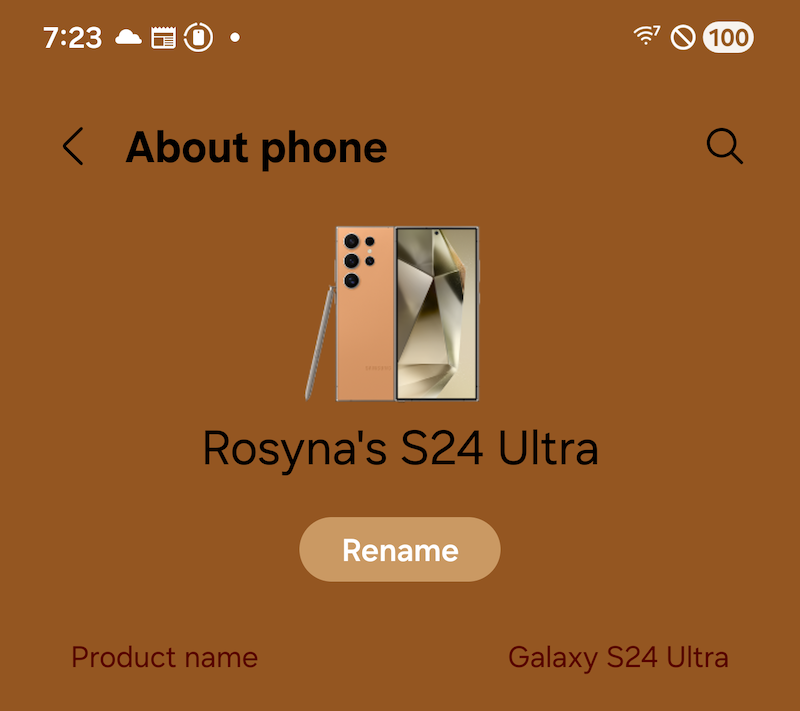
Device name showing in Settings on Android

The device name is the user-assigned name of the device, like “Rosyna’s iPhone” or “Rosyna’s S24 Ultra.” Both Samsung and Apple devices automatically set their names during setup when you provide your account login details (Apple Account or Samsung Account, respectively). This highly disambiguates a device and is absolutely great for fingerprinting when combined with signals from other fingerprinting techniques. Many devices also automatically include your name in the default device name. Other devices, such as the Pixel, simply default to the product's marketing name, like “Pixel 8 Pro”.

The device name is used in Bluetooth sharing/discoverability, hotspot sharing, AirDrop/QuickDrop, when a device joins a Wi-Fi network, and in other situations where multiple devices in a small area (like a home, office, or home office) need to be distinguished from one another. So even if an Android OS version doesn’t automatically set it to include your name, you, as a user, may want to set it so you can recognize the device from another device.

Android requires no permissions whatsoever to acquire the device's name (despite what Google Gemini claims). Just get the DEVICE_NAME value from Global Settings; the API is entirely unrestricted. Google doesn’t appear to consider it personally identifiable information (PII).

On iOS, after years of developers, malicious libraries, and advertising SDKs abusing UIDevice.current.name, iOS 16 and later versions hide it behind a restricted entitlement, com.apple.developer.device-information.user-assigned-device-name. To obtain a restricted entitlement on iOS, you must contact Apple via a form (requires an Apple Developer Account to access), explicitly request the entitlement, explain why you require it (such as disambiguating multiple iOS devices attached to an account, like PagerDuty to Netflix), and promise not to use an SDK that requests it or transmits it to another party.

For backward compatibility, if you don’t have the proper restricted entitlement on iOS 16 and later, your app will only display the generic product name, such as “iPhone” or “iPad.” You won’t even see a fancy marketing name like “iPhone 16 Pro Max.”


Cellular Carrier

Getting just the cell phone carrier name and/or the PLMN code (which includes a country code and carrier code, like T-Mobile in Germany versus T-Mobile in the US) for your carrier might seem like a minor detail. Sure, it might make it easier to group your devices and provides an additional unique signal when everything else is equal, but there’s a much darker side to it...

However, let me share a true story first. Back in late 2016, I was interviewing for a security job at Apple. At that time, Apple required you to fly to Cupertino for in-person interviews after passing the telephone interviews and whatnot. When I arrived at my hotel in Cupertino, I checked my T-Mobile settings to ensure their “HD Pass” was enabled so I could watch HD Netflix and Crunchyroll while I was there, since the Wi-Fi was not fast enough. While not on Wi-Fi, I opened the T-Mobile website on my iPhone. It didn’t ask for any login info. I found that strange, so I tried opening it in a private “tab.” Same result. It didn’t ask for login info. “WTF, T-Mobile?!,” I thought. I cleared all my cookies just to be safe. Still the same: no login required.

The website used my T-Mobile network connection to skip the login process.

Sadly, it also showed me every single line and phone number I had, all my devices, my name, and allowed me to download a PDF of every past bill for at least seven years. The bills included every number I called, every number that called me, all the numbers I exchanged texts with, my entire physical address, and the last four digits of my payment method. It was an identity thief’s dream!

To test a theory, I created a new project in Xcode, embedded a WebView that visited T-Mobile’s website, and reproduced the issue. This was bad—very bad. This was also before T-Mobile had a Bug Bounty Program, so they had no way to report the problem to the right team. Reporting it by calling 611 wouldn’t work because “it’s a feature!”

I knew something had to be done because it was a huge privacy concern. So, during my interviews at Apple, as soon as I spoke with a manager, I reported it to them. I figured I might not be able to do much, but surely Apple could pressure T-Mobile a little to fix it quickly.

After I got the job, I was able to see the progress of the bug that was filed. It took about 3-6 months (IIRC) for T-Mobile to finally close its massive hole.

Many carriers try to “make things easier” by allowing users unauthenticated access to certain API endpoints without logging in when connected to the carrier’s network. You can’t fully realize how much information or what actions they can perform, especially if a malicious or ad SDK exploits that special privilege to upload your carrier name and/or PLMN code to their servers and return API endpoints that can be abused without authentication. They might even be able to charge your account if your carrier permits you to purchase unrelated items, including ringtones or apps, which can be charged to your cell phone account.

On Android, to get the carrier name, simply call TelephonyManager.networkOperatorName and/or TelephonyManager.simOperatorName (especially helpful if you’re on an MVNO like Google Fi). To obtain the PLMN code, call TelephonyManager.simOperator so you at least know which country to query. No permissions are required to access this information.

Apple put the functional equivalent of the information in CTCarrier behind a restricted entitlement, com.apple.CommCenter.fine-grained, in iOS 16. The APIs still exist; they just return two dashes instead of actual values when the entitlement is missing. (I found a bug CVE-2025-46292, which leaked information about the current carrier despite the entitlement. Apple fixed that in iOS 26.2 et fam.


Android Fragmentation, Features, and Model IDs

As everyone knows, the Android ecosystem is monstrously fragmented. Dozens of manufacturers offer myriad models with theatrically varying hardware features. Some manufacturers even use different branding to target specific demographics or to create the illusion of more competition within certain markets. For three examples:

  • BBK Electronics spawned the Oppo, OnePlus, RealMe, Vivo, and iQOO brands.

  • Huawei created Honor to make Huawei-branded phones seem “more premium.”

  • Xiaomi birthed POCO and Redmi.

Even when a single company doesn’t produce multiple brands, Android devices are often sold as white-label products, either entirely or partially, allowing other companies to rebrand and sell them as their own. (See also the example of the non-existent Trump Phone.) Additionally, other Android manufacturers launch phones tailored to more market segments than you might have thought existed.

All of this adds up to a lot of different phones with a lot of different hardware features. This makes fingerprinting a user based on hardware feature availability, especially camera features, very effective at distinguishing individuals. If you hash various hardware features, flags, and metrics (camera, display, battery, et cetera) together, especially for a device that doesn’t sell millions of units, you can get a value shared by few global users. Millions of Galaxy devices might share the same specs, but the knock-off your cheap relative bought at “Slammin’ Samuel’s Smartphone Steals” probably does not. I’ve discovered that some of these phones even provide the globally unique serial number for a specific part.

However, iOS devices generally have the same components across all units of the same model. In most cases, simply obtaining the Model ID is all the signal you’ll get—or need. To find the Model ID (for example, “iPhone17,2"), just use uname().machine. You can find tables that map Model IDs to marketing names online or create your own if you need to show the user the marketing name.

The other cases involve users replacing broken parts or upgrading with non-Apple components. This shouldn’t change the Model ID, but there’s no way to know if third-party parts match factory specs. If you replace a broken screen with a higher-spec third-party screen, it may or may not indicate its specs to the device. For safety, it's best if the screen pretends to be the original, avoiding information that could make the repair detectable, and therefore easier to fingerprint.

Android does have similar functionality by combining Build.MANUFACTURER and Build.MODEL, but note that on some lower-end Android devices, these values might be lying liars or truthfully insufficient to distinguish device features, which is why other hardware feature queries are used to fingerprint Android devices.


List of Google APIs used by snoopy SDKs and their iOS equivalents

Note: Some Android APIs require permissions to access certain features, and I’ll try to note them explicitly. I’ll also mention if a feature is available on iOS but needs an entitlement—for example, an entitlement anyone can obtain or a restricted entitlement that requires Apple’s approval. Unfortunately, both iOS SDK and Android SDK documentation are very limited when it comes to listing the permissions and entitlements needed to use a feature. They should be listed on the same page and in the same section that details the API arguments and return types. Unfortunately, that’s not always the case.

This section (and article) is based on the Google APIs listed in Section E of the paper “Fingerprinting SDKs for Mobile Apps and Where to Find Them: Understanding the Market for Device Fingerprinting” by Michael A. Specter, Mihai Christodorescu, et fam.


android.accessibilityservice.AccessibilityServiceInfo: getResolveInfo(), getSettingsActivityName()

This seems to be used to get a list of installed apps matching specific criteria on Android.

On iOS, Twitter ruined the ability to get a list of installed apps because they were being misused for fingerprinting and advertising. See also: canOpenURL:. Getting a list or partial list of installed apps on iOS was once eligible for a $5000 bounty. I’m not sure if they still pay that much now.


android.accounts.Account: name
android.accounts.AccountManager: getAccounts(), getAccountsByType(com.google)

This aims to retrieve the Google account linked to the device. It now needs explicit permissions to access.

On iOS, there’s no public way to access the Apple Account, DSID, or any details about the current user. There used to be a playerID option for GameCenter that provided a universal identifier, but it’s now scoped by vendor.


android.app.ActivityManager getDeviceConfigurationInfo(), getRunningAppProcesses(),
getRunningTasks(), isUserAMonkey()
android.app.ActivityManager$MemoryInfo availMem, lowMemory, totalMem
android.app.ActivityManager$RunningTaskInfo numRunning
android.app.TaskInfo baseActivity(), numActivities(), taskId()

The ActivityManager APIs can be used to fingerprint certain device characteristics, such as the amount of available memory. Historically, they also exposed information about other running apps and tasks. However, in recent Android versions, access to system-wide running tasks and processes has been heavily restricted for privacy and security reasons. Calls that once returned a broad view of all running apps now typically return only the tasks associated with the calling app’s own process, rather than a complete system-wide list.

On iOS, you can call host_statistics64() to retrieve memory statistics. While total memory isn’t a reliable fingerprint signal because knowing the model ID (obtained with uname()) tells you the memory capacity, calculating a “fuzzy" available memory value can be used to track a user across apps.

Similar to Android, Apple doesn’t allow access to a list of running apps that aren’t your own. In fact, doing so was worth a $5000 bounty. (See CVE-2025-46276).


android.app.KeyguardManager isDeviceSecure(), isKeyguardSecure()

These functions tell the SDK whether the user has configured a secure lock screen (vs one without a passcode, pattern, or PIN) or if they have a SIM card locked with a PIN. This gives an additional bit of information for fingerprinting users.

On iOS, you can call LAContext.canEvaluatePolicy() to determine if a user has enabled a passcode. Apps like banking or line-of-business (LOB) apps have a legitimate reason to know this, especially if they want to ensure the user has a passcode set up.


android.app.UiModeManager getCurrentModeType()

This API gives the current device type. (Watch, appliance, TV, headset, et cetera)

On iOS, UIUserInterfaceIdiom identifies the device type, but uname() offers better data for user fingerprinting.


android.app.WallpaperInfo getPackageName()
android.app.WallpaperManager getDrawable(), getWallpaperInfo()

These APIs obtain highly sensitive information about the device’s current wallpaper. Hashing such information is extremely useful if you want to fingerprint the device’s owner. Fortunately, these calls are gated behind permissions. However, if an app uses a malicious or advertising SDK, that code gets the same permissions as the host app.

I’m currently, actively looking for an equivalent SPI (private API) on iOS to get similar information.


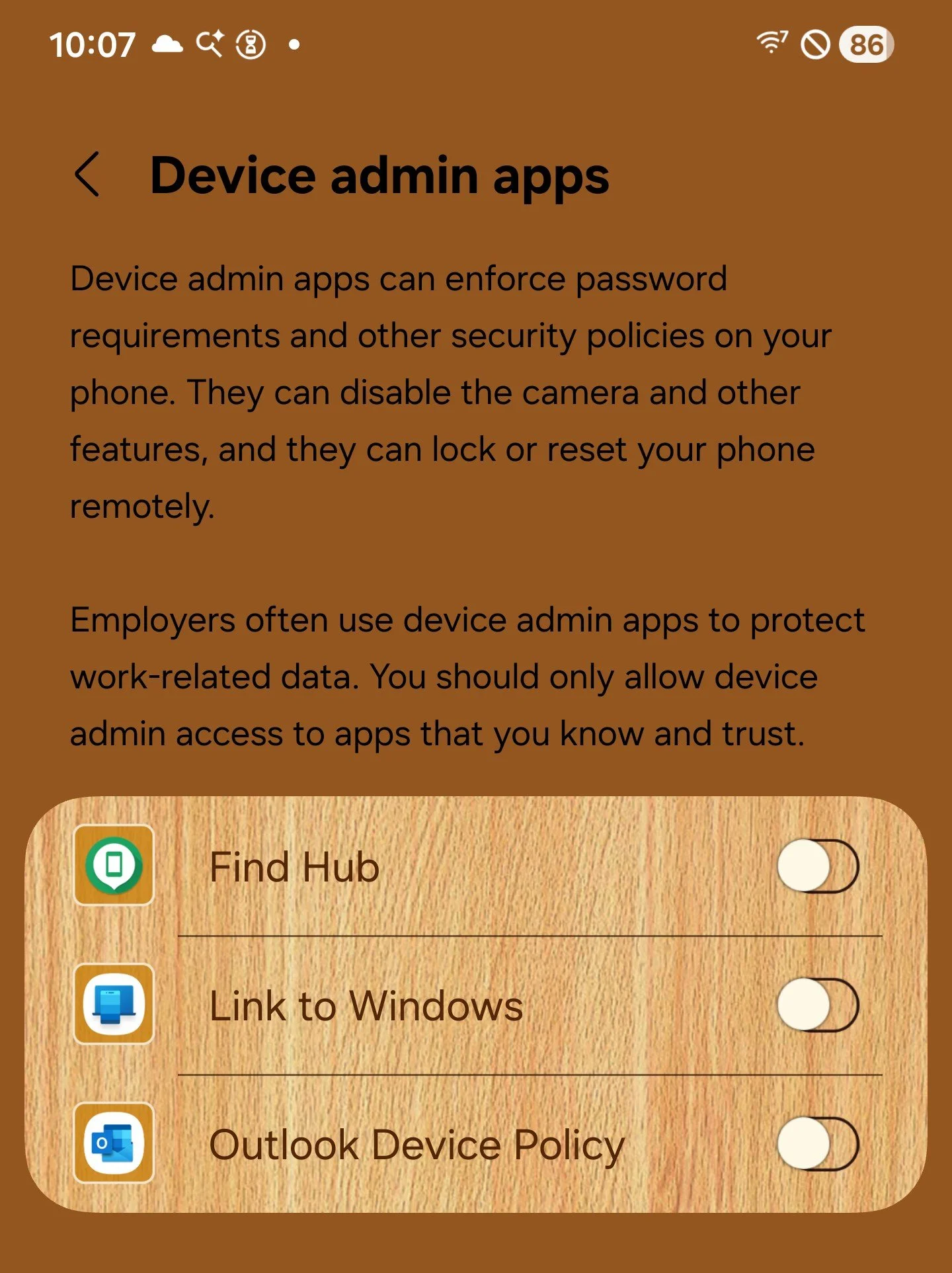
android.app.admin.DevicePolicyManager getActiveAdmins(), getStorageEncryptionStatus()

These are considered “admins” for the purposes of the Android API

Here you’ll find flags to help fingerprint a user. getActiveAdmins() lets you retrieve the list of device administrator apps enabled on the device, as shown above.

On iOS, storage is always encrypted. iOS allows multiple apps to control settings (MDM), but there are no public APIs to get the list of MDM solutions installed.


android.app.usage.StorageStatsManager getTotalBytes()

Returns the total available storage space on the Android device. This isn’t the same as free space and can be used to help fingerprint a user, as flagship phones usually have multiple storage tiers.

On iOS, you can get the total available size in bytes with volumeTotalCapacityKey, There is a huge warning in the documentation about not using it for fingerprinting users, but developers may choose to ignore it.


android.app.usage.UsageStats getPackageName()
android.app.usage.UsageStatsManager queryUsageStats(INTERVAL_DAILY)

Provides usage statistics for various apps within a specified time range. If the user hasn't explicitly granted permission, it only provides usage stats for the currently running application.

On iOS, you must use the Family Controls APIs (including ScreenTime) which requires the restricted entitlement, com.apple.developer.family-controls.


android.bluetooth.BluetoothAdapter getAddress(), getBondedDevices(), getDefaultAdapter(), getName(), getScanMode(), getState(), isDiscovering(), isEnabled()

Provides information about Bluetooth devices. Requires extensive permissions and user approval. Again, if a host app obtains these permissions, malicious or advertising SDKs can hijack them.

iOS has Core Bluetooth. It also requires permissions and user approval. The same malicious or ad SDK abuse can occur here.


android.content.ClipboardManager getPrimaryClip(), getPrimaryClipDescription()

Gets the current contents of the clipboard. It only shows a brief notification that a paste occurred if an app automatically tries to access the clipboard to scan for sensitive information.

iOS has UIPasteboard. If the paste action isn't done through standard methods like tapping the system Paste button or pressing Command-V, a dialog box alerts the user that an app is accessing the pasteboard and asks for permission.


android.content.ContentResolver query(Uri(content://com.google.android.gsf.gservices)), registerContentObserver(android.provider.MediaStore$Images$Media.EXTERNAL_CONTENT_URI)

Obtains a key-value store from an internal Google Services Framework provider. It contains some sensitive information that’s useful for fingerprinting, but since Android 8 it just throws an exception.

Registering content observers for images notifies the registering app when it detects any changes to the media store (what most users would call “the photo library”). That includes adding new screenshots, deleting images, or changing any existing images. Code receiving this notification could, for example, upload the image to its own service. The app must have permission to read images for code within it to receive this notification.

ContentResolver.query() doesn’t directly correspond to any single API on iOS. On Android, it was used to access private settings, and there are many undocumented ways to retrieve private settings on iOS, like in CVE-2025-43449.

On iOS, registering for image changes is the job of PHPhotoLibrary.register(), which also requires explicit user permission.


android.content.Intent getIntExtra(health), getIntExtra(plugged), getIntExtra(scale), getIntExtra(status), getIntExtra(temperature), getIntExtra(voltage), getStringExtra(technology)

These functions provide extremely valuable battery statistics for fingerprinting attempts across different applications on the same device. For instance, battery voltage can change as batteries age, which may help track users over time. Developers don’t need such methods to connect their apps, since both Android and iOS offer options to enable a developer’s own applications to share data with each other. However, malicious or advertising SDKs lack these capabilities, and they are often the ones seeking to share information.

The iOS equivalent, UIDevice.isBatteryMonitoringEnabled = true, only provides the state (charging, full, unplugged) and charge for the battery at the time of invocation. It’s still useful for fingerprinting users, but it becomes less reliable over time as the charge level continuously fluctuates.


android.content.pm.ApplicationInfo flags, loadLabel(), sourceDir
android.content.pm.ConfigurationInfo reqGlEsVersion
android.content.pm.InstallSourceInfo getInstallingPackageName()
android.content.pm.PackageInfo firstInstallTime, lastUpdateTime, packageName, receivers, requestedPermissions, requestedPermissionsFlags, services, signatures, signingInfo, versionCode, versionName
android.content.pm.PackageItemInfo metaData, name, packageName
android.content.pm.PackageManager checkPermission(), getApplicationLabel(), getInstallerPackageName(8), hasSystemFeature(android.hardware.fingerprint), hasSystemFeature(android.hardware.location.gps), hasSystemFeature(android.hardware.sensor.accelerometer), hasSystemFeature(android.hardware.sensor.compass), hasSystemFeature(android.hardware.sensor.light), hasSystemFeature(android.hardware.telephony), hasSystemFeature, hasSystemFeature, queryIntentActivities(), resolveActivity(android.content.Intent(``android.intent.action.CALL''))
android.content.pm.SigningInfo getApkContentsSigners()

I grouped these APIs together because they all provide important metadata about your device. This includes information about the applications that are installed, who signed them, what installed them, as well as the features of your device and its location. These APIs are frequently used by snoopers not only for device fingerprinting but also for detecting emulators and identifying if a device has been jailbroken.

hasSystemFeature() is used for fingerprinting because Android devices widely vary.

The resolveActivity(android.content.Intent("android.intent.action.CALL")) function helps you find out which apps on your device can make and receive phone calls.

On iOS, information that was once accessible through the MobileInstallation private framework has been removed due to misuse and is now stored in the secure and heavily protected LaunchServices database, which cannot be mapped into processes.

These kind of “does this hardware feature exist” APIs aren’t as needed iOS, since uname() returns the model ID (like “iPhone17,2”) and hardware features, excluding storage tiers, are consistent across model IDs.


android.content.res.Configuration getLocales(), locale, orientation, screenLayout, uiMode
android.content.res.TypedArray getDimensionPixelSize()

Data such as locales and screen metrics rarely (if ever) change, making them good targets for fingerprinting.

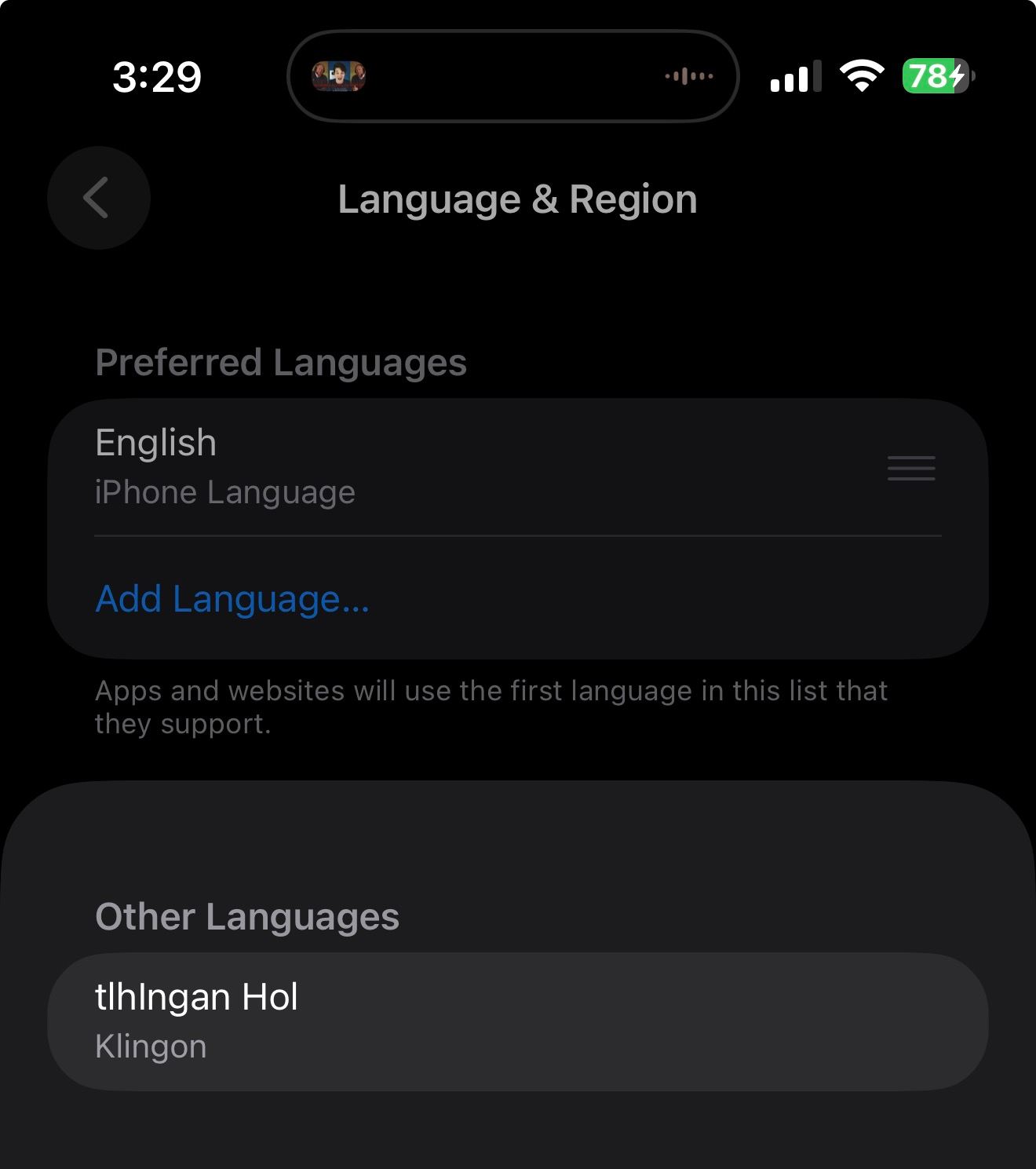
On iOS, you can use NSLocale.preferredLanguages to fingerprint a user in the same way. It usually returns a single language, but multilingual users can configure a preferred order of languages. (If you prefer Greek but there is no Greek text available for a string, you might prefer French over English, so the method returns your preferred languages in order. This can be especially identifying if you add Klingon to your language list.)


android.hardware.Sensor getName(), getName(), getName(), getPower(), getVendor(), getVersion()
android.hardware.SensorEvent values
android.hardware.SensorManager getDefaultSensor(8)

These methods return the available sensors and information about them (including names and values). The sensor name and vendor can be used to fingerprint users; the sensor values can provide deeper information about them. Android has tried to limit the abuse of these sensor values by severely limiting frequency while an app is in the background.

Core Motion in iOS provides APIs to retrieve similar information. These APIs do not require specific entitlements, but you must declare their usage; otherwise, your app crashes like a Cybertruck hauling three grocery bags. Like other device information frameworks, background activity is heavily restricted. Additionally, using Core Motion to obtain information such as the vendor name is not particularly useful, as iOS devices are less fragmented. Instead, you can simply call the uname() function to get that information.


android.hardware.camera2.CameraCharacteristics CONTROL_AE_COMPENSATION_RANGE, CONTROL_AE_LOCK_AVAILABLE, CONTROL_AF_AVAILABLE_MODES, CONTROL_MAX_REGIONS_AF, FLASH_INFO_AVAILABLE, LENS_FACING, REQUEST_AVAILABLE_CAPABILITIES, SCALER_AVAILABLE_MAX_DIGITAL_ZOOM, SCALER_STREAM_CONFIGURATION_MAP, SENSOR_INFO_SENSITIVITY_RANGE, STATISTICS_INFO_MAX_FACE_COUNT
android.hardware.camera2.CameraManager getCameraIdList()
android.hardware.camera2.params.StreamConfigurationMap getHighSpeedVideoFpsRanges(), getOutputSizes()

You can enhance an Android device fingerprint, given the vast and wide differences in Android units, by adding specific camera capabilities like these.

There’s no need for this on iOS unless a camera is broken or repaired with a non-Apple part. Otherwise, using the model ID from uname() will provide all the necessary information about the device’s cameras.


android.hardware.usb.UsbManager getDeviceList()

Information about USB peripherals connected to an Android device can be used to track a user across different apps and devices, especially if one or more of the attached USB peripherals exposes a serial number.

You can’t enumerate USB devices directly on iOS without a specialized restricted entitlement, but there is the External Accessory framework for MFi devices over Lightning and Bluetooth connections. Any devices connected that way can return valuable fingerprinting information.


android.location.Location getAccuracy(), getAltitude(), getBearing(), getBearingAccuracyDegrees(), getElapsedRealtimeNanos(), getLatitude(), getLongitude(), getProvider(), getSpeed(), getSpeedAccuracyMetersPerSecond(), getTime(), getVerticleAccuracyMeters(), isFromMockProvider()
android.location.LocationManager: getBestProvider(), getLastKnownLocation(), isProviderEnabled(gps), isProviderEnabled(network)

These methods tell the caller where you are, which way you’re moving, and how fast you’re going. You must obtain explicit permission to access both fine and coarse information about the user’s location. When an app has this permission, malicious and advertising SDKs can exploit it to collect this personal data.

It’s the same on iOS: all location information requires specific user permissions, and if an app has those permissions, any associated fingerprinting SDKs will as well.


android.media.AudioManager: getDevices(), getRingerMode(), getStreamMaxVolume(), getStreamVolume(), isMusicActive()

These APIs provide information about audio devices that are connected to or available on an Android device. You can use this data to track users not just across different apps but also across multiple devices when the same audio hardware is used. If a malicious SDK notices your fancy headphones’ serial number on your phone, and also on your tablet, you’ve been fingered. Or printed. Or both.

Getting the iOS list of audio devices is gated by the restricted entitlement com.apple.avfoundation.allows-access-to-device-list.


android.media.MediaDrm: getPropertyByteArray(deviceUniqueId)

This API returns a semi-unique UUID for DRM queries, although developers have reported that some users may share these UUIDs.

On iOS, I believe this would be covered by AirPlay IDs, which are not accessible in apps approved for Apple’s App Store.


android.media.RingtoneManager getActualDefaultRingtoneUri(), getDefaultUri(), getRingtone()

These APIs enable fingerprinting by retrieving the current ringtone set on a device. The more distinctive the ringtone, the stronger the fingerprint.

On iOS, there is no way to retrieve the current ringtone or access a list of available ringtones. You can set a ringtone in your own CallKit app, but you cannot retrieve the system ringtones.


android.net.ConnectivityManager getActiveNetwork(), getActiveNetworkInfo(), getDefaultProxy(), getNetworkCapabilities()
android.net.NetworkCapabilities hasTransport(4) (is we VPN?)
android.net.NetworkInfo getState(), getTypeName(), isConnected(), isRoaming()
android.net.ProxyInfo getHost()
android.net.TrafficStats getTotalRxBytes(), getTotalTxBytes()
android.net.sip.SipManager isVoipSupported()
android.net.wifi.ScanResult capabilities(), frequency(), level(), SSID()
android.net.wifi.WifiInfo getBSSID(), getFrequency(), getIpAddress(), getLinkSpeed(), getMacAddress(), getNetworkId(), getRssi(), getSSID()
android.net.wifi.WifiManager calculateSignalLevel(), getConfiguredNetworks(), getConnectionInfo(), getScanResults(), getSSID(), is5GHzBandSupported(), isDeviceToApRttSupported(), isEnhancedPowerReportingSupported(), isP2pSupported(), isPreferredNetworkOffloadSupported(), isScanAlwaysAvailable(), isTdlsSupported(), isWifiEnabled()

These APIs enable extreme fingerprinting by retrieving Wi-Fi network details and statistics. The vast majority of them are hidden behind user permissions, since just having the SSID or BSSID of a network is enough information to find your physical location. This is also why you should never sign in to a hidden network—your phone (on any platform) broadcasts the SSID as you walk around, allowing people listening in to figure out where you live.

On iOS, you need either the com.apple.developer.networking.wifi-info entitlement or location permissions, since obtaining the SSID provides the location.

android.os.BaseBundle getBoolean(present), getLong(install_begin_timestamp_seconds), getLong(referrer_click_timestamp_seconds), getString(technology), getString(install_referrer)

These are part of the Google Play Install Referrer API and attribution ad campaigns, allowing code to know who referred a user to install a given package. They can be used by advertising SDKs for cross-app correlations. Their entropy is relatively high because they allow exact referrer information (e.g., UTM tokens). Google says the data persists from 7 to 90 days.

Apple has the AdServices framework for referrer information. The docs for attributionToken() have more information. Apple says the data lives for 24 hours from creation.


android.os.Build BOARD, BOOTLOADER, BRAND, CPU_ABI, CPU_ABI2, DEVICE, DISPLAY, FINGERPRINT, getRadioVersion(), getSerial(), HARDWARE, HOST, ID, MANUFACTURER, MODEL, PRODUCT, RADIO, SERIAL, SOC_MANUFACTURER, SOC_MODEL, SUPPORTED_32_BIT_ABIS, SUPPORTED_64_BIT_ABIS, SUPPORTED_ABIS, TAGS, TIME, TYPE, USER
android.os.Build$VERSION BASE_OS, CODENAME, INCREMENTAL, RELEASE, SDK_INT, SECURITY_PATCH
android.os.Build$VERSION_CODE FROYO, GINGERBREAD_MR1, GINGERBREAD, HONEYCOMB_MR1, HONEYCOMB_MR2, HONEYCOMB, ICE_CREAM_SANDWICH_MR1, ICE_CREAM_SANDWICH, JELLY_BEAN_MR1, JELLY_BEAN_MR2, JELLY_BEAN, KITKAT_WATCH, KITKAT, LOLLIPOP_MR1, LOLLIPOP

Except for the serial number, these stats are useful for fingerprinting an Android installation because of the vast number of Android device manufacturers. Even with Samsung, the same flagship model can use different SoC manufacturers by region.

Code can access the serial number only if it meets any of the following conditions:

  • The requesting app has been granted the READ_PRIVILEGED_PHONE_STATE permission, which is only available to apps preloaded on the device.

  • The requesting app possesses carrier privileges.

  • The requesting app is designated as the default SMS role holder.

  • The requesting app is the device owner of a fully-managed device, the profile owner of an organization-owned device, or has been delegated permissions from these roles.

On iOS, since builds don’t vary much, most information can be obtained or inferred from the results of uname() or ProcessInfo. To access something equivalent to getSerial() would require a highly restricted entitlement.


android.os.Debug isDebuggerConnected()

This just does what it says on the tin. Useful if you’re trying to hide sketchy code from basic reverse engineering, like stepping through code, but not that useful for fingerprinting itself.

On iOS, you’d use sysctl() and check for P_TRACED for the same information.


android.os.Environment getDataDirectory(), getExternalStorageDirectory(), getExternalStorageState(), getRootDirectory(), isExternalStorageEmulated()

These can be used to help fingerprint a device (like say, is an SD card attached?), check to see if a device is rooted, or as anti-debugging calls.

On iOS, if you want to check for external storage, et cetera, you’d have to go through either Document Pickers and save a security-scoped bookmark or go through File Providers, in which case a malicious or advertising SDK could be granted the same permissions to access the drive.


android.os.PowerManager getCurrentThermalStatus(), getLocationPowerSaveMode(), isDeviceIdleMode(), isInteractive(), isPowerSaveMode()

If we assume maximum maliciousness, malicious or advertising SDKs can use these to either detect an emulated environment or perform malicious actions only when the device isn’t in use. They’re not too good for fingerprinting, as these states are generally transient.

Not all of these signals are available on iOS. However, Apple does offer APIs like ProcessInfo.thermalState and ProcessInfo.isLowPowerEnabled that allow applications to reduce processor-intensive tasks when the device is overheating or needs to conserve battery. However, malicious code could exploit the same information to perform actions while the device might not be actively in use.


android.os.StatFs getAvailableBlocks(), getAvailableBlocksLong(), getBlockCount(), getBlockCountLong(), getBlockSize(), getBlockSizeLong(), getTotalBytes()
android.system.StructStat st_mtime

These methods allow for fingerprinting based on the total and free disk space available. They act as wrappers around functions like statvfs() and stat(), among others. While free space changes as you add or delete photos, messages, emails, and other data, the overall configuration of the disk remains constant.

I find it frustrating that iOS doesn't provide fuzzy values for certain capacities. These values can be obtained through functions like statvfs(), stat() et fam, or by using .volumeTotalCapacityKey and .volumeAvailableCapacityKey. There is a significant risk of misuse and tracking, which is why you must disclose the use of these APIs in your privacy policy.


android.os.SystemClock elapsedRealtime(), uptimeMillis()

These values represent the elapsed milliseconds since boot and can be used for fingerprinting. They allow for the correlation of information across applications on a single device. Malicious or advertising SDKs can include them, like timestamps, to help evaluate the validity of a fingerprint, or choose between different fingerprints with nearly-identical data.

I really don’t like that iOS doesn’t make these values fuzzy either. Use ProcessInfo.systemUptime or mach_absolute_time(). There is high potential for misuse and tracking, and using these APIs requires you to mention them in your privacy policy.


android.os.SystemProperties get(gsm.operator.isroaming), get(gsm.operator.numeric), get(gsm.sim.state), get(init.svc.qemu-props), get(init.svc.qemud), get(qemu.hw.mainkeys), get(qemu.sf.fake_camera), get(qemu.sf.lcd_density), get(ro.bootloader), get(ro.bootmode), get(ro.hardware), get(ro.kernel.android.qemud), get(ro.kernel.qemu.gles), get(ro.product.device), get(ro.product.model), get(ro.product.name), get(ro.runtime.firstboot), get(ro.serialno)

This is a hidden class and not part of the public SDK. The various “qemu” attributes are used to detect emulation. The ro.product.* attributes are basic product names used for either emulation detection or for fingerprinting. ro.runtime.firstboot can tell whether the device was just wiped (useful for detecting reverse engineering). The property ro.serialno is highly restricted, and attempting to access it without permission throws an exception.

Because iOS devices are less fragmented than Android devices, you can use the uname() function to obtain the device model. To get the device’s user-provided name, use UIDevice.name. Starting with iOS 16, accessing that name requires the com.apple.developer.device-information.user-assigned-device-name entitlement, at least if everything is working properly.


android.os.UserManager getSerialNumberForUser(), getUserProfiles(), isDemoUser(), isSystemUser(), supportsMultipleUsers()

If a device has multiple users, iterating over them lets you obtain persistent, unique user IDs (serial numbers) for each user. They’re valid for the device until the user is deleted and recreated. According to the documentation, these functions do not require the android.permission.MANAGE_USERS permission. Most phone devices have a single user whose serial number is 0.

iOS doesn’t really support users like Android does, but you can get similar signals (to see if there’s an MDM enrollment) by getting the UserDefaults key com.apple.configuration.managed, which requires you to explicitly mention using it in the app’s privacy policy.


android.provider.Settings$Global getString(adb_enabled), getString(airplane_mode_on), getString(airplane_mode_radios), getString(always_finish_activities), getString(animator_duration_scale), getString(auto_time), getString(auto_time_zone), getString(bluetooth_discoverability), getString(bluetooth_discoverability_timeout), getString(bluetooth_on), getString(boot_count), getString(data_roaming), getString(development_settings_enabled), getString(device_provisioned), getString(http_proxy), getString(mode_ringer), getString(network_preference), getString(stay_on_while_plugged_in), getString(transition_animation_scale), getString(usb_mass_storage_enabled), getString(use_google_mail), getString(wait_for_debugger), getString(wifi_networks_available_notification_on)
android.provider.Settings$Secure getInt(accessibility_enabled), getInt(mock_location), getString(accessibility_display_inversion_enabled), getString(allowed_geolocation_origins), getString(default_input_method), getString(enabled_input_methods), getString(input_method_selector_visibility), getString(install_non_market_apps), getString(location_mode), getString(skip_first_use_hints), getString(tts_default_pitch), getString(tts_default_rate), getString(tts_default_synth), getString(tts_enabled_plugins)
android.provider.Settings$System getInt(screen_brightness), getString(accelerometer_rotation), getString(android_id), getString(auto_caps), getString(auto_punctuate), getString(auto_replace), getString(dtmf_tone), getString(dtmf_tone_type), getString(end_button_behavior), getString(font_scale), getString(haptic_feedback_enabled), getString(mode_ringer_streams_affected), getString(mute_streams_affected), getString(notification_sound), getString(ringtone), getString(screen_brightness), getString(screen_brightness_mode), getString(screen_off_timeout), getString(show_password), getString(sound_effects_enabled), getString(time_12_24), getString(user_rotation), getString(vibrate_on), getString(vibrate_when_ringing)

Except for ANDROID_ID, these various user settings are great for fingerprinting users across apps because the settings themselves are shared across apps. Just hash them together!

ANDROID_ID is an exception because, as of Android 8.0 and later, it returns a value unique to the combination of signing key (app vendor), user, and device. Some settings are the default on most devices, but if the user has set them, their device stands out like a sore thumb.

On iOS, UserDefaults has an NSGlobalDomain that some frameworks (e.g., AirTrafficDevice before iOS 26.0) incorrectly use. It contains values that can be hashed (such as supported languages) to help fingerprint a device. Notably, iOS doesn’t let you access all the settings Android does. The equivalent to ANDROID_ID on iOS is UIDevice.identifierForVendor.


android.provider.Telephony$Sms getDefaultSmsPackage()

This returns the default SMS app. Getting this value can be used for both fingerprinting and malicious targeting if an SMS app is known to have security flaws. To get this value in Android 11, the app running the code must declare its intent with android.provider.Telephony.SMS_DELIVER.

On iOS, you can set the default messaging app, but it only applies to sending new messages. You can’t override the app that handles incoming SMS messages.


android.telecom.TelecomManager isTtySupported()

A single bit of entropy for fingerprinting. Most Android phones return true.

On iOS, there’s no supported way to get this feature setting. Every iPhone since at least iPhone 4 has supported TTY.


android.telephony.CellIdentityGsm getCid(), getLac(), getMcc(), getMnc()
android.telephony.CellIdentityLte getCi(), getMcc(), getMnc(), getTac()
android.telephony.CellIdentityWcdma getCid(), getLac(), getMcc(), getMnc()
android.telephony.CellInfo isRegistered()
android.telephony.CellInfoCdma getCellIdentity(), getCellSignalStrength()
android.telephony.CellInfoGsm getCellIdentity(), getCellSignalStrength()
android.telephony.CellInfoLte getCellIdentity(), getCellSignalStrength()
android.telephony.CellInfoTdscdma getCellSignalStrength()
android.telephony.CellInfoWcdma getCellIdentity(), getCellSignalStrength()
android.telephony.CellSignalStrength getDbm()
android.telephony.CellSignalStrengthCdma getDbm()
android.telephony.CellSignalStrengthGsm getDbm()
android.telephony.CellSignalStrengthLte getDbm()
android.telephony.CellSignalStrengthTdscdma getDbm()
android.telephony.CellSignalStrengthWcdma getDbm()
android.telephony.SignalStrength getCellSignalStrengths()
android.telephony.SubscriptionInfo getCarrierName(), getCountryIso(), getDataRoaming(), getDisplayName(), getIccId(), getNumber(), getSimSlotIndex()
android.telephony.TelephonyManager getActiveModemCount(), getCellLocation(), getDataNetworkType(), getDataState(), getDeviceId(), getDeviceSoftwareVersion(), getGroupIdLevel1(), getImei(), getLine1Number(), getMeid(), getMmsUAProfUrl(), getMmsUserAgent(), getNetworkCountryIso(), getNetworkOperator(), getNetworkOperatorName(), getNetworkType(), getPhoneCount(), getPhoneType(), getSignalStrength(), getSimCountryIso(), getSimOperator(), getSimOperatorName(), getSimSerialNumber(), getSimSpecificCarrierIdName(), getSimState(), getSubscriberId(), getVoiceMailAlphaTag(), getVoiceMailNumber(), hasIccCard(), isHearingAidCompatibilitySupported(), isNetworkRoaming(), isSmsCapable(), isVoiceCapable(), isWorldPhone()
android.telephony.cdma.CdmaCellLocation getBaseStationId(), getNetworkId(), getSystemId()
android.telephony.gsm.GsmCellLocation getCid(), getLac()

There’s a lot of capability here for evil and tracking if the host application has the right permissions. The getMcc() and getLac() methods can reveal your location and require the ACCESS_COARSE_LOCATION or ACCESS_FINE_LOCATION permissions. Others require READ_PHONE_STATE. Getting the IMEI requires even deeper permissions, like READ_PRIVILEGED_PHONE_STATE.

On iOS, there used to be CTCall, CTCarrier, and CTSubscriberInfo. But they were all heavily abused for fingerprinting and other evil purposes. For those that still work, they require com.apple.CommCenter.fine-grained and similar restricted entitlements. In iOS 16 and later, classes like CTCarrier were supposed to return “--”. However, there was a bug (CVE-2025-46292) that leaked information about the current carrier. Apple fixed that in iOS 26.2 et fam.


android.util.DisplayMetrics density, densityDpi, heightPixels, scaledDensity, widthPixels, xdpi, ydpi
android.view.Display getMetrics(), getName(), getRealMetrics(), getRefreshRate(), getRotation(), getSize()

Due to the wide variety of Android devices, screen metrics are really useful for fingerprinting a device.

On iOS, just getting the model name from uname() is enough to provide screen metrics (if you look them up separately in a spec sheet). If a user has multiple screens available (e.g., via AirPlay), you can use UIScreen.screens to fingerprint them. Use UIFontMetrics and UIApplication.preferredContentSizeCategory to fingerprint font bigness settings. Getting the actual refresh rate requires using CADisplayLink, and it may vary based on low-power mode or load, which can be determined using other APIs.


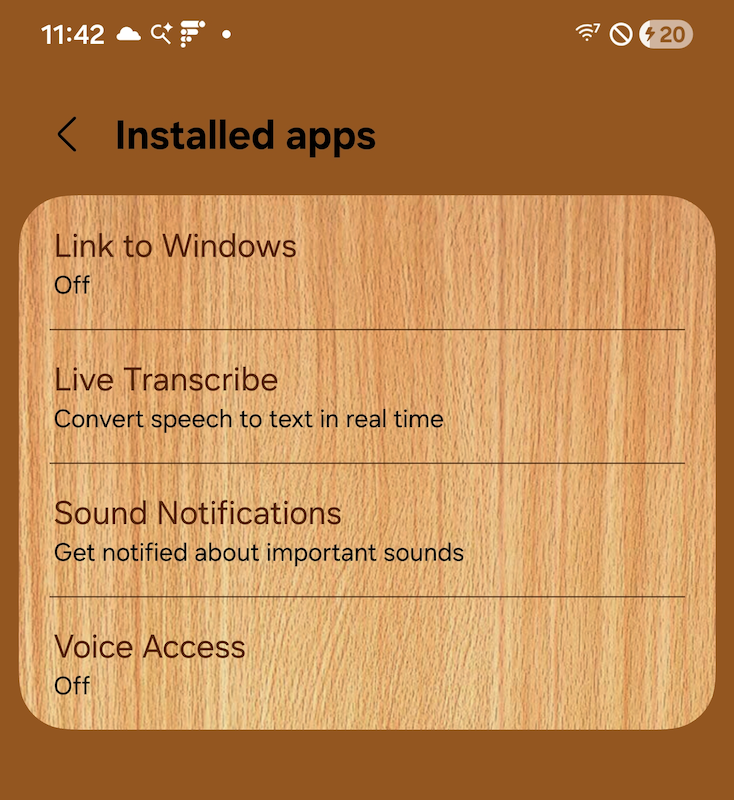
A list of Accessibility Services

This retrieves the list of "Accessibility Services," which are apps that enhance or integrate with Android devices' Accessibility features. The pre-installed services on my Samsung Galaxy S24 are displayed here. These services are particularly useful for fingerprinting, especially when the user has enabled any of them.

isTouchExplorationEnabled() is equivalent to checking whether VoiceOver is enabled.

iOS does not allow public iteration of accessibility tools, but you can use UIAccessibility to check which features are enabled. This helps assess feature usage to make sure a developer can support accessibility features and allows for fingerprinting by creating a hash of the accessibility flags.


A Conclusion

First, I’d like to say many thanks to my friends for their encouragement, help, and editing, and to their grammar checkers for their help. I really appreciate the clarity they added to this article.

I hope you get a chance to read Google’s final paper (it’s open access!) on Malicious/Ad Tracking SDKs on Android, as I only “responded” to the list of fingerprint signal APIs they included in their pre-print paper to compare them with what’s possible to fingerprint on iOS. I didn't expect this article to turn into “this is how you track iOS users."

Please encourage and insist that all operating system vendors eliminate as many signals as possible, not only to safeguard privacy but also to protect people! Demand that carriers stop allowing you to bypass authentication in your web browser!

And remember, even though it’s funny, don’t add Klingon to the list of languages you want to see on iOS. I haven’t found a single app localized for Klingon, so it’s just a way to fingerprint you.

SulaDta'mo', Satlho'

This post is sponsored by Mountain Dew Baja Blast.

AirTrafficDevice: Ignored, Reluctantly Fixed, No CVE, No Bounty: A Story of a Serious Privacy Leak in iOS.

An image of airplane food. Because this deals with the AirTrafficDevice framework.

My Personal Goals and Impetus

I care about user privacy, possibly to an unhealthy degree. Since May this year, I’ve been developing an iOS app to largely automate the discovery of privacy flaws, including data that Apple forgot that can leak personal information or expose unique identifiers. These leaks allow the bad guys (malware vendors, Facebook, unscrupulous ad companies, and so forth) to track users across apps and devices.

That lets them target us with malware, sell our data to the highest bidder for targeted ads (violating the spirit of App Tracking Transparency), or build detailed user profiles by aggregating data from various sources, known as Shadow Profiles. Even worse, some leaks reveal information that, in certain jurisdictions, could lead to arresting or disappearing users, like leaking what apps you have installed. I’ve found several of those...

I wholly and utterly believe in the principle behind Apple’s App Tracking Transparency initiative. I therefore consider anything that is both

  • uniquely tied to a user and

  • available when “Allow Apps to Request to Track” is disabled to be a gross violation of the spirit of App Tracking Transparency.

Because Apple has a security/privacy bug bounty, I figured I could attack two problems with one action:

  • I could make iOS devices safer for users.

  • I could potentially turn it into an income source.

Sadly, the latter hasn’t happened. While Apple has fixed 3-4 (search for my name) of the 21 privacy bugs (and one kernel panic) I reported, Apple decided they weren’t eligible for the bug bounty. One (CVE-2025-43357) wasn’t eligible because I wasn’t the first to report it to Apple, which makes sense. I understand why the AuthKit bug wasn’t eligible for a bounty, even though it leaked fingerprintable information; it was more of a persistent annoyance to me and prevented me from discovering other privacy leaks in iOS due to the noise from AuthKit.

Fortunately, a future release of iOS 26.x will address a privacy leak I reported, which qualifies for the lowest bounty. Unfortunately, Apple won’t pay the bounty until several weeks after the fix is publicly released, so I won’t be able to use it to cover my October bills.

The Meat of This Post

I’m planning to follow Google Project Zero’s “Responsible Disclosure” process for this privacy leak. The bug was publicly fixed in iOS 26 et fam and was silently fixed in 18.7. Although it’s not mentioned anywhere in the iOS 18.7 release notes, I can no longer reproduce it on an iOS device running iOS 18.7, despite repeated efforts.

Today, I’m discussing a privacy leak reported to Apple as OE11020806152810 on 2025-05-20, and when I realized it also leaked DSIDs (Directory Service Identifiers), I created a new report (OE1102442124011).

Apple only needed to implement one change to fix both reports, which Apple listed as:

Sandbox Profiles
We would like to acknowledge Rosyna Keller of Totally Not Malicious Software for their assistance.
— Apple

When I first reported OE11020806152810, it was almost immediately closed as “Not to be fixed”. I had to gently poke a few bears to get it back to “we’ll fix this.”

However, Apple never assigned a CVE while reluctantly fixing this serious bug/privacy leak.

The AirTrafficDevice framework on iOS is responsible for syncing information between an iOS device and the Finder, iTunes, or the Windows Apple Devices app (depending on your Mac vs. PC choices). It stores the following information on the iOS device:

  • All DSIDs that are required to play media and use downloaded apps on the iOS device. Every Apple ID has an immutable DSID associated with it. That’s “immutable” as in it never changes, even if you change your Apple ID login information. Bad people can use it to track users across apps and devices. If you have different Apple IDs, say one for iCloud and a different one for app purchases, AirTrafficDevice stores both. If you ever bought protected music in Japan via a Japanese iTunes Music Store gift card (back when the Japanese iTMS had DRM on all songs, something strangely common in my friend group), AirTrafficDevice stores that DSID also. Due to their global uniqueness, I consider DSIDs to be the Holy Grail of Tracking Users.
  • [[ATUserDefaults sharedInstance] allHosts] returns a dictionary of globally unique identifiers representing each Mac and/or Windows PC as keys. They look like UUIDs without dashes.
  • Each host dictionary contains a value called SyncHostName, which holds the name of the Mac (as set in System Settings > General > About > Name on macOS) or PC. Your computer name may be globally unique if you chose your own. If not, then on macOS, it defaults to containing your first name. For example, if I change my computer’s name to “Puri-Puri PowerBook,” it’s likely unique. But if I leave it as the default, it might be “Rosyna’s MacBook Air,” which reveals my name.
  • [[ATUserDefaults sharedInstance] diskUsageInfo] returned a dictionary for each media type (apps, books, music, movies, et cetera). The keys were _PhysicalSize, which gave the size of the resources in bytes, and _Count, which gave the number of assets of a specific media type that were synchronized. While _PhysicalSize and _Count could be used individually to help create a globally unique identifier, creating a hash of them together is almost guaranteed to make one that can be used to track users across apps—and maybe across devices if users synced multiple iOS devices to a single PC or Mac.

All of this information was accessible because the preference domain that AirTrafficDevice uses to store data, com.apple.atc, was not protected. At all… For example, to get the list of DSIDs, you could simply call CFPreferencesCopyAppValue(CFSTR( "ATDeviceSettingPreExistingStoreAccountIDs" ), CFSTR("com.apple.atc")), which returned a data blob. Upon inspecting the data blob, I noticed that it started with “bplist”, indicating a Binary Property List. After further investigation of the plist entries, I discovered it was actually an NSKeyedArchiver instance. Unarchiving this value revealed the three DSIDs I had used with my iPhone. Sigh. It was somewhat moot as I could have just called [[ATDeviceSettings sharedInstance] getPreExistingStoreIdentifiers], which would automatically decode the values from the preference keys.

Apple addressed this in both iOS 18.7 and iOS 26 et fam by locking down the com.apple.atc preferences domain.

I hope you learned something from this post, and depending on the results of the GoFundMe, I’d like to write more posts of this type if enough people want them.

TL;DR Give me a Proof of Concept!

Download AirTrafficDevice PoC for iOS 18+

Download AirTrafficDevice PoC for iOS 16.7.12+

Warning: The Proof of Concept, which was artisanally coded by hand, uses AI slop for splash screens (portrait, landscape, and iPad) and icons (dark and light). I do not have the skills of an artist, and obviously, I can’t afford to commission someone with the skills of an artist. The Good News™ is that every submission I make using the PoC template uses the same AI Slop, so the energy and water was only wasted once.

You can also check out my l33t coding skillz, although I’ve removed the code that tries to get the user’s name, because those privacy leaks aren’t yet fixed yet in any released version of iOS.

I had to backport my standard Proof of Concept Privacy Violation Template to iOS 16.7.12 because some of the SwiftUI I used wasn’t available on iOS 16. To confirm that it worked, I had to pull out a device that would run iOS 16.x, my iPhone X, because Apple fixed the bug in iOS 26.0 and silently fixed it in iOS 18.7, and all devices that can run iOS 17 can run iOS 18. That meant searching all my old gadget drawers for an iPhone X, something that was cut off from major iOS version support.

If you run the attached Xcode project on your iOS device, it will present a list of items that AirTrafficDevice leaks. You’ll have to run it on an iOS device running something pre-iOS 18.7. You may have to pull the screen down to refresh if the list doesn't appear immediately. If you want to inspect the results of the scan harder, you can use the share button in the app to share the results via AirDrop to a Mac.

Note: You’ll need to update the signing certificate in the Xcode project to run it on an iOS device, as its current certificate is set to “Ad Hoc”.

To reproduce if not using an iOS version that fixes the bug:

  1. On your Mac, set your device’s name in System Settings -> General -> About -> Name to something unique that you’d recognize.
  2. Connect your iOS device to your Mac. Make sure you authorize your iOS device to talk to your Mac and vice versa.
  3. Click on your iOS device in the Finder’s sidebar after making a new window.
  4. Let your iOS device sync in the Finder at least once, just until it completes.
  5. Run the attached Xcode project’s app on your iOS device
  6. Notice which values show up in the list.

A 20-year retrospective on reverse-engineering an Apple bug and a very desperate plea for help.

A little bit of History

I thought it’d be helpful to have a retrospective of a little reverse-engineering task I did about 20 years ago, when Mac OS X 10.4.x was at the dawn of the PowerPC to Intel transition. (Mac OS X 10.5 was the first merged release.) I gathered all this information through reverse engineering, including reading PowerPC disassembly and using a debugger. None of the information was acquired by actually examining source code, as I didn’t have access to said source code.

A brief background on the process/application with the bug

In Mac OS X 10.4, a process known as SystemUIServer was responsible for showing menu extras (but not status items at the time), taking screenshots, providing the Spotlight user interface, and handling some iPod/Digital Hub device events. It also held all the code for some of Apple’s own menu extras—the menu extra plugin bundles for those extras were just stubs to enable the menu.

A screenshot of SystemUIServer from Mac OS X 10.4.3 being decompiled in Hopper with the built-in menu extra code. The substring “Extra initWi” is selected because the built-in menu extras have an initWithBundle: method.

A screenshot of SystemUIServer from Mac OS X 10.4.3 being decompiled in Hopper with the built-in menu extra code.

Most people’s interactions with SystemUIServer were solely with the true menu extras on the menu bar’s right-hand side.

Today’s SystemUIServer with menu extras, status items, Siri, and control center items

Today’s SystemUIServer with menu extras, status items, Siri, and control center items

At the time, Apple only allowlisted specific menu extras by class name (checked in -[SUISStartupObject _canLoadClass:]). Any attempt to load a menu extra that advertised a different class name in its Info.plist’s NSPrincipalClass entry would fail. Menu extras were first-class citizens. You could hold the Command (⌘) key down to move or quit them. They loaded automatically and needed no backing application. This sent lots of developers looking for workarounds to Apple’s allowlist, as they wanted these features for their own menus.

Some developers would steal one of the allowlisted class names for their menu extra plugin. This was unwise. The Objective-C runtime only allowed one class instance with a specific name to be loaded at a time. When it found duplicates, the one it chose was an implementation detail that could cause unexpected crashes. Favorite choices of class names to hijack included AppleVerizonExtra or IrDAExtra, i.e., something a user isn’t likely to have enabled. In the rare case someone did enable these, or if more than one developer chose to steal the same class name, all hell could break loose.

This was the impetus for Menu Extra Enabler. It was an old-style InputManager1 plugin that automatically loaded into SystemUIServer when installed and overrode the -[SUISStartupObject _canLoadClass:] instance method to return YES unregardless of what class name was used for the menu extra’s principal class.

1InputManagers were a cheap and quick way to get into the address space of arbitrary Cocoa runtime applications at a determinate location.

In Mac OS X 10.3.x, this allowlist limitation bit Apple in the calyx. Apple added a Keychain menu extra in /Applications/Utilities/Keychain Access.app/Contents/Resources/Keychain.menu without updating the allowlist to include the new principal class, so Apple created a hacky Enable.menu to allow it. This Enable.menu enabled the Keychain menu extra, and just for a bonus, also disabled all third-party menu extras. I updated Menu Extra Enabler to prevent Enable.menu from loading—Menu Extra Enabler already allowed Keychain.menu to load, so the hack wasn’t necessary.

The Bug in Mac OS X 10.4

Mac OS X 10.4.x introduced a new problem. If the system delayed the launch of SystemUIServer for long enough, the Bluetooth menu extra would not load even if Bluetooth was enabled. In fact, SystemUIServer seemingly "erased" all menu extras to the right of the Bluetooth menu item! At Unsanity, we received many reports blaming missing Menu Extras on ShapeShifter, with a few people blaming it on Cee Pee You.

Neither caused the problem. In fact, the underlying "problem" could have occurred days before you applied a theme or started Cee Pee You, since it happened only when logging into Mac OS X and at no other time. It also occurred whether or not any third-party menu extras were in use (and even if Menu Extra Enabler wasn't installed). I remember browsing forums and seeing a screenshot of the late Dwyane McDuffie’s menu bar, and he had been bitten by the bug—only the Bluetooth menu extra was visible.

After five straight hours of reverse engineering and debugging, I found the sequence of events that triggers the bug:

  1. The user enables Bluetooth and the Bluetooth menu extra.
  2. At some later time, the user starts a new login session with a bunch of login items (iChat, Extensis Suitcase, TextEdit, Console, Word, Alfred, whatever)—just enough to delay the normal initialization of SystemUIServer.
  3. When the system gets to it, it launches SystemUIServer. It reads its preferences from disk, including the list of menu extras installed last time it ran. It then registers for notifications, calling -[[SUISDocklingServer alloc] initWithController:docklingServer] in -[SUISStartupObject init] so it can respond and install future menu extras when they’re opened. Without this, you’d have to log out and back in to see any new menu extras. So far, so good.
  4. Like other Cocoa runtime applications that implement NSApp delegate methods, SystemUIServer receives the -[SUISStartupObject applicationDidFinishLaunching:] call when everything’s ready to go. Loading menu extras here causes some kind of problem, so instead, SystemUIServer takes this opportunity to create a timer to call -[SUISStartupObject _loadMenuBarExtras] after a 20-second delay.
  5. The Dockling Server decides it’s now time to load the Bluetooth menu extra, so it issues a notification (see step 3) that eventually calls -[SUISStartupObject addMenuExtra:position:reserved:data:] on the Bluetooth menu extra. The 20-second timer has not elapsed.
  6. -[SUISStartupObject addMenuExtra:position:reserved:data:] takes the Bluetooth menu extra and passes it to -[SUISStartupObject createMenuExtra:atPosition:write:data:], which eventually calls -[NSMenuExtra initWithBundle:] and the Dockling server thinks it’s installed the menu extra.2
  7. Now that the new menu extra is supposedly loaded, SystemUIServer saves its menuBarPlugins array, writing the preferences to disk.
  • The 20-second timer has not elapsed, so the array contains one item: the Bluetooth menu extra. This list of installed menu extras is not reread from disk until SystemUIServer is relaunched, usually at the next login.
  1. When the 20 seconds noted in step 4 have elapsed, the timer fires and the system finally calls -[SUISStartupObject _loadMenuBarExtras]. It’s time to load the menu extras! First, the method creates the NSMenuToolbar3 where all menu extras live. After that, it looks at the list of previously-installed menu extras (read from disk in step 3), loads each of them, and makes them into NSMenuToolbarItems added to the main NSMenuToolbar. Everything’s coming up Milhouse!

So what’s the problem? There’s no Bluetooth menu extra! Let’s go back to step 5 and see what really happened.

  1. a. Since the NSMenuToolbar that hosts all menu extras doesn’t get created until step 8 (after the 20-second timer elapses), everything triggered by -[SUISStartupObject addMenuExtra:position:reserved:data:] fails.
  2. a. SystemUIServer does not check for failure—if it can’t load a menu extra, no big whoop; it’ll just keep iterating through the ones it has.
  3. a. But it does matter when it saves (to disk) the preferences containing only the Bluetooth menu extra, which isn’t even loaded. At this point, the list of all menu extras to load next time has been erased. The poor user probably doesn’t notice this—SystemUIServer has already loaded the list for this session (step 3) and doesn’t read back the mangled set of preferences until it launches again, usually at the next login.
  4. a. If the list of menu extras from last session contains the Bluetooth menu extra, it still doesn’t load. All subsequent calls to -[SUISStartupObject createMenuExtra:atPosition:write:data:] with the Bluetooth menu extra return NULL (fail). That’s because _alreadyHasExtra: returns YES since it thinks it loaded the Bluetooth menu extra in step 5. So when the bug hits, the Bluetooth menu extra never gets loaded.

2 This is foreshadowing!
3 Although NSMenuToolbar is named like an AppKit class, it only exists in SystemUIServer in this story.

I figured out all this after 5 hours of straight debugging/reverse engineering.

The Solution

Unsanity customers thought that Menu Extra Enabler was causing the problem since it optionally restarts SystemUIServer when applying a new theme, thereby reading the mangled preferences from disk, not trying to load anything but Bluetooth. Others blamed Cee Pee You since it restarts SystemUIServer during installation (it has to install Menu Extra Enabler, which is only loaded on process launch).

My first fix was to prevent SystemUIServer from saving menu extras if the new list contained only items to the left of the Bluetooth menu extra and the Bluetooth menu extra itself. This failed if the user manually removed menu extras to the right of the Bluetooth menu extra (by holding the command [⌘] key and dragging them off the menu bar in a “poof”), since the list of loaded menu extras was saved on a timer, and the user could remove multiple menu extras before the timer fired and the list was finally saved to disk.

It was also extremely hackish and required a lot of code (about 50 lines). I was not happy with this at all. Not only did it not fix the problem (just the outcome) since the Bluetooth menu extra still wouldn't load in these cases, but it could also break depending on the user's actions. It annoyed me so much that I woke from sleep after creating this horrible hack. So, when I woke up, I tried again, from scratch.

The new fix with this understanding is only 5 lines of code; it is future-proof and doesn't require the user to do anything.

Apple did fix this bug in Mac OS X 10.5, and Menu Extra Enabler already had code to disable my workaround of not allowing the Bluetooth menu extra even to attempt to load (step 5) if the NSToolbarMenu wasn’t set up yet (step 5a) if the user was running Mac OS X 10.5 or later.

When you do things right, people won't be sure you've done anything at all.

Using Xcode to debug plugins

Menu Extra Enabler was a plugin that had to be in a special location (~/Library/InputManagers/) to function, and loaded in an application to which I had no source code. I had to take advantage of a neat Xcode feature: you can set an arbitrary process/application to be a target’s executable, and it’ll automatically enable breakpoints in your plugin. It’s extremely useful for debugging plugins!

A screenshot of Xcode's Edit Scheme window with the Run section selected, showing SystemUIServer as the selected executable

Xcode’s Scheme Editor, Run Section

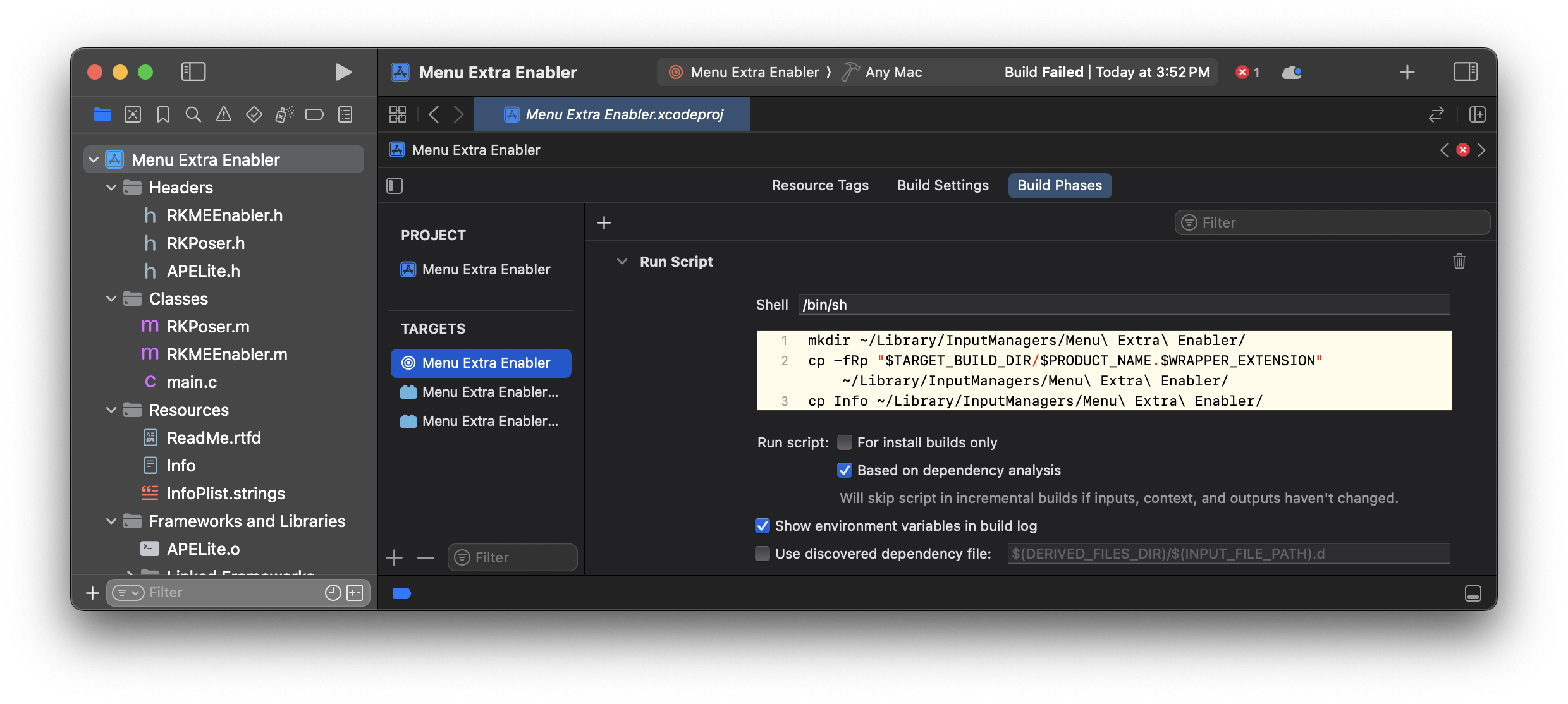
After selecting the project in the sidebar, this screenshot shows the Run Script build phase copying the built project to the InputManagers folder

The necessary Run Script build phase to copy the built plugin to the Proper plugins folder 

This was slightly difficult to do with SystemUIServer, as Mac OS X 10.4 automatically launched it if it wasn’t running. So, there was a lot of killall SystemUIServer in Terminal to keep it dead until Xcode could launch it.

For an application to be debugged in today’s macOS versions, it must have the com.apple.security.get-task-allow entitlement. This is the default for development apps, but those don’t usually run on other people’s computers—they won’t have the development certificate used to sign the app. To prevent developers from accidentally notarizing development versions of their apps that have the com.apple.security.get-task-allow entitlement by default, we at Apple made an explicit decision to allow this entitlement if and only if paired with the disable library validation entitlement (required to load third-party plugins if you notarize your macOS application).

This allows application developers (like Adobe) to ship notarized applications (like Photoshop) that run third-party plugins in-process, while still allowing third-party plugin developers to debug their plugins without having to disable any of the newer macOS security features, like System Integrity Protection or the Signed System Volume.

What’s changed in 20 years.

The Rules

Input Managers are now dead, the allowlist for class names for menu extras is no longer needed due to library validation, and you cannot attach to system processes such as SystemUIServer by default. To prevent (or at least discourage) people running Mac OS X on generic PCs, Apple “encrypted” SystemUIServer and a few other Mac OS X 10.5-and-later executables for use with Don’t Steal Mac OS X.kext.

To add to this, many elements that were previously part of SystemUIServer have been either completely removed (iPod support) or extracted from SystemUIServer into components like Control Center, Notification Center, the Screenshot process, and other plugins, app extensions, and other processes, as if there was a fire sale on the components and everyone wanted a souvenir.

Arbitrary in-process plugins, like menu extras, have always been inherent security and stability risks (and a way to do super neat, unexpected things, per my old job). Apple has bet heavily on out-of-process plugins to solve issues caused by the older ways, like XPC/ExtensionKit for Mail plugins, Xcode plugins, QuickTime plugins (yay!), and Kernel Extensions.

Furthermore, the main reason for using third-party menu extras instead of status items was finally addressed in macOS 10.12, when status items became first-class citizens in the menu bar. They still need a backing app, but they can be moved and removed by holding the command key down and dragon-dropping them around.

The Tools

Long before Gen Alpha was born, I would use otool (the variant known as otx) dumps and feed them into BBEdit to view the absolutely huge files it generated, as BBEdit was the only text editor that could/can handle that much text without falling over backwards onto a pike—as long as word-wrapping was disabled.

The Objective-C runtime requires special processing for connecting methods to call sites in reverse engineering tools. With Objective-C, method calls go to a runtime function (like objc_msgSend()), which then calls the correct method on the proper class after some magic. Due to this indirect calling and highly dynamic dynamism, reverse engineering tools can’t just do the usual “double-click to view function call” on Objective-C code; they need an extra step to connect the methods and calls through Objective-C runtime functions.

On the other hand, Swift adds a lot of boilerplate code to applications, even for basic operations on a class or struct. Great reverse engineering tools with decompilers should recognize the boilerplate code and remove it to show what the developer wrote, not just what the compiler wrote. It’s a minor pet peeve of mine when reverse engineering Swift code.

Hopper

Hopper is a first-class citizen on macOS. 

SystemUIServer in Hopper

For Hopper and Objective-C 4 2.0, Hopper kindly does the extra work of connecting runtime functions to the actual class and method being invoked, if those are available through static analysis. It has an SDK and some plugins. Hopper is a $99/year subscription.

National Security Agency’s Ghidra

When you hear that the US government’s spying agency decided to release a free reverse engineering tool, “NSA’s Ghidra," you may fear exactly what I did, getting shivers down your spine and making you wary: “It’s written in Java, isn’t it?”. Yes, it’s written in Java. It’s not a first-class citizen on macOS. It’s an ugly tool. Bitmap graphics are everywhere. It feels like it escaped from the late 1980s. The installation method is a mess.

SystemUIServer in the NSA’s Ghidra. Semi-supports decompiling 32-bit PowerPC apps!

But it’s completely free and has some really, really good plugins written for it to use with Apple platform (iOS, macOS, et fam) binaries, like LaurieWired’s absolutely fabulous Malimite. It also supports the Objective-C runtime well.

IDA Pro

IDA Pro is a very, very expensive reverse engineering tool. In 2022, private equity firms bought it, removed the perpetual licenses, and raised the prices by several thousand dollars. Prices for a secure version of IDA Pro range from $2,999 to $8,599. It’s not cheap.

SystemUIServer from Mac OS X 10.4 in IDA Pro. Look at the iPod SCSI notification! 

IDA Pro does have a vibrant plugin community. I’m using a very old version and I’m not sure if the built-in Objective-C support has been improved, but I’ve found it lacking.

A desperate plea for help.

One year ago, I was “let go” from Apple as I had used up all my disability leave. It was either “come back, or quit”. So I came back, even though my disability wasn’t treating me any better. I was shortly thereafter let go because my disability was incompatible with productivity, especially under a boss who couldn’t understand non-physical disabilities.

Over the past year, I’ve completely burned through all my savings. This month (May 2025) is the last month I’m able to pay rent. I’m completely broke, even in debt after paying May’s rent. I can’t really afford food. I’m living in Sunnyvale—I can’t afford to stay here and can’t afford to move, especially since I’d need a regular income to move to a new, cheaper place. But frankly, I don’t feel safe here. I don’t feel like this is a home.

I’m desperately looking for any assistance that can be provided. Specifically, I need some temporary help to afford the health insurance and rent. I’ve been seeing a therapist for many years, and it was determined that I definitely have ADHD (along with major depressive disorder). While I’m being treated for the major depressive disorder, I can’t afford the actual testing for ADHD, which also takes time I don’t have to get a proper medication.

My ultimate goal is to find some contracting work for macOS/iOS where I can use my reverse engineering and bug fixing/finding/working around skills. I miss figuring out how things work, something I could do in spades while working on macOS Notarization at Apple.

I also miss when people could launch a potato salad fundraiser on Kickstarter or another fundraising site. Since some people have asked, I do have the Apple Cash at my first name (see above) at the computer Apple makes dot com. And PayPal at the same address, but I think it’s misconfigured—it says you’re supposed to receive a product if anything is sent there, even though there are no products. Also, I have that Cash app thing, $<my first name>, I think? As for food, I have an Amazon Wishlist, but I don’t know how useful it is or what can be put on there.

I can help you solve problems with other people’s code. My résumé is available, if that’s worth something to you, please contact me.

Love Tropicana: The Fix for securityd Eating Gobs of RAM When Updating Keychain Entries

A few nights ago I was updating some not-to-be-named software on my laptop. This piece of software had a few passwords stored in the Keychain. Since said application was recently updated and therefore the code was modified, the system asked me if I wanted to give access to the keychain to this updated application. The dialog that it shown to the user is shown below:

sexy_keychain.png


Bad things happened when I clicked the "Change All" button to once again allow this updated application to access all the passwords it was allowed to access. Specifically, the securityd process was using 1.3-1.7GBs of ram (the rprvt value is all that matters). This was really, really bad as it caused my machine to page-out and page-in like crazy. Due to the high memory usage, it also caused my boot volume to run out of space because of all of the swap files in /var/vm/. My point is that very, very, very bad things happened. After I cleared a lot of unused crap (Garage Band loops and old iDVD themes) off my boot volume, I rebooted. I then tried launching the updated application again. I got the same dialog and the same problem. However, since I now had enough hard drive space available, I just waited for about 10 minutes. The passwords were accessed successfully. I then relaunched the application and securityd crashed. Lovely. Rebooting just repeated the cycle. Also lovely.

The securityd daemon handles all authorization and marshals keychain access. If securityd  is not running, you cannot authorize any application (although sudo still functions) and all calls from applications to the keychain either immediately return an error without asking for a password or permission or they just freeze indefinitely. This is also very, very bad. It amounts to a denial of service since you're unable to do much with your computer.

So I clearly had a problem. I remember seeing this problem before while browsing the internets. I specifically found it on 43 Folders. I started searching The Google for any solutions. The searches brought up some really amusing "solutions" such as a thread from Mac OS X Hints. People are talking about some crazy voodoo solutions there. Examples include updating the firmware or adding a "keychain" extension to the user's keychain. Some voodoo causes are also mentioned. One such example is that it is cause by syncing keychains between an ICBM and a PowerPC-based Mac.

The Troubleshooting

Ok, so obviously there were no known solutions to the problem that I could find. This kind of pissed me off. Especially since I had to wake up at 5am to make it to a Microsoft Vista launch event. It was 3am at the time. Obviously, there wasn't going to be any sleep for me.

I decided to do my own troubleshooting. The crash of securityd clearly pointed to a corrupted file of some sort. So I had to determine which file was hosed like a bear coming into contact with the strikingly handsome Stephen Colbert. First, I restored all my keychains from known-good backups that another Mac was actively using. I rebooted and tried to reproduce the problem. Bloody 'ell! The problem remained. So it obviously wasn't that the keychains were corrupted. I rebooted again, started up the terminal, ran sudo fs_usage -f filesys securityd to see what files securityd was accessing when it was trying to update the keychain reference for the application. /var/db/SystemKey repeatedly showed up. However, I was very, very tired and getting very, very angry so I decided to go with a machete approach to fix the problem. I ranstrings on securityd and it turned up four "interesting" files and folders:

/var/db/SystemKey
/var/db/TokenCache 
(this is a folder).
/var/db/SystemEntropyCache
/var/db/CodeEquivalenceDatabase

Since I was so angry, I just "moved aside" three of these. "Moved aside" meaning that I just renamed everyone of them to have a ".old" extension using the Terminal (via mv). The TokenCache folder did not exist on my ICBM so I couldn't move it aside. I rebooted.The problem was fixed!. I then went to the Microsoft event. I emailed the very sexy Merlin Mann with the possible shoot-everything fix. He reported back that it fixed the problem for him, at least. Hallelujah!

The Actual Fix

I was pissed off at the fact I wasn't able to narrow down the problem to one file. So after a very good 14 hour sleep (after being awake for over 30 hours), I set about to confirm the issue. I started by examining the files and comparing them to the files on my PowerPC Mac. The TokenCache folder didn't exist on the ICBM and the SystemKey didn't exist on the PowerPC Mac. So I could rule those two out. I examined theSystemEntrophyCache file and its contents were boring. So I was able to rule that out. I then opened the CodeEquivalenceDatabase in TextMate (an awesomely awesome overnight text editor) and the text strings matched the applications that currently have Keychain access. So I put the "moved aside" CodeEquivalenceDatabase file back to its original location and rebooted. I then opened Transmit (an awesomely awesome FTP application) which I had just updated and the problem reoccurred. YAY! We (the royal We) had just narrowed down the exact corrupted file that was creating the problem.

In order to fix this problem if you are having it, just open the Terminal (/Applications/Utilities/Terminal) and type:

sudo mv /var/db/CodeEquivalenceDatabase /var/db/CodeEquivalenceDatabase.old

or

open /var/db (and then manually move CodeEquivalenceDatabase to the trash, if you can).

Upon rebooting, God should be in His Heaven and all should be well with the keychain.

Note 1: If CodeEquivalenceDatabase is corrupted, then updating Mac OS X will also cause securityd to eat gobs of memory near the very end of the update cycle when the installer updates Apple applications. This may make it seem like the update stalled.

Note 2: The /var/db folder is interesting. It's not required to boot Mac OS X and all the files in there are created as needed by Mac OS X. It's also explicitly ignored by repairing permissions. However, it does hold important account information, so I would not delete the folder or the items inside unless you are trying to revert your Mac to "factory fresh" and do not wish to have any of the same accounts available without recreating them.


Exercises in Futility: Repairing Permissions is Useless

 Update: I've reposted this blog entry here on Squarespace as a test. Some links do not work any more and some information is outdated, but the facts remain facts.

Update 2015-06-16: Common sense has won! Mac OS X 10.11 "El Jefe" removes the Repair Permissions functionality! And it now automatically checks for proper permissions during a Mac OS X Update or Security Update! Quoth the Raven: «System file permissions are automatically protected, and updated during Software Updates. The Repair Permissions function is no longer necessary.»

DEAD DEAD DEAD!

Update 2015-06-16: I've updated this article with some other relevant changes that have been made since it was originally written. Including information on Mac OS X 10.11's new System Integrity Protection (rootless) features. Search for "2015-06" to locate the changes quickly.

This is a rant I've wanted to write for an extremely long time. However, I prefer to let my anger/annoyance with some topics sit in the stew that is my soul and slowly boil until it is like you dropped a tea bag into a cup of very hot water housed in a smooth glass container that you just stuck in the microwave for 10 minutes. Yes, doing that will cause the water to spontaneously explode, leaving horrible burn marks all over your face (just be glad it wasn't maple syrup or something else that could stick to human flesh).

Update: Despite what Apple's Knowledge Base Article says, Repair Permissions does not repair permissions on any third party software (or any Apple software outside of the Base System). I just checked this by changing the permissions on FontAgent Pro and then repairing permissions. The permissions were not set to their correct values. This makes repairing permissions even more useless as it can't be used for any non-apple software. It also explains why installing CHUD or iPhoto from iLife '05 would cause the incorrect warnings to appear.

Now that that pleasantness is over with, the real issue I have is all these websites that suggest repairing permissions will actually fix/prevent problems. Even worse is when otherwise intelligent people are poised with a Mac OS X related troubleshooting problem and immediately suggest the user repair permissions. Repairing permissions won't fix your problem. As Jason Harris said (and I am paraphrasing), "Repairing permissions is zapping the PRAM for the twenty-first century". I couldn't agree more. Both are equally futile attempts to fix a completely unrelated problem. In other words, 99% of the time, neither will fix nor prevent any problem. Especially not the problems they are recommended for. Covering yourself in vaseline and rolling around naked in the dirt and repairing permissions are just as likely to fix your Mac OS X problem. People swear by repairing permissions as often as they save files and present as proof the fact they don't have any problems. That's rather specious reasoning. As with everything in life, The Simpsons has covered this topic well. Yes, I've shamelessly copied this text verbatim.

Homer: Not a bear in sight. The Bear Patrol must be working like a charm.

Lisa:That's specious reasoning, Dad.

Homer: Thank you, dear.

Lisa: By your logic I could claim that this rock keeps tigers away.

Homer: Oh, how does it work?

Lisa: It doesn't work.

Homer: Uh-huh.

Lisa: It's just a stupid rock.

Homer: Uh-huh.

Lisa: But I don't see any tigers around, do you?

[Homer thinks of this, then pulls out some money]

Homer: Lisa, I want to buy your rock.

[Lisa refuses at first, then takes the exchange]

Please ignore the fact that they're talking about tigers and Mac OS X version 10.4 just happens to be called "Tiger". The point stands. Just because something isn't around because you do something every day does not mean it would suddenly come around when you stop doing the something every day. Some people used to smear chicken blood all over their kin to keep the devils away too.

Call Me Lucy

Update 2015-06-16: The location of the Receipts folder moved in Mac OS X 10.5 to /Library/Receipts/db/. The Receipts folder moved again in Mac OS X 10.6 to /var/db/receipts/ and the BOM files are no longer stored inside packages (.pkg). The BOM files are now saved in a flat manner directly in the root of /var/db/receipts/. The information and commands listed below should be adjusted for these changes.

I guess I should explain what repairing permissions is and isn't. Repairing permissions goes through all the Package files (.pkg) in /Library/Receipts/. A receipt package is created when (and only when) you install something using Installer.app (Apple's installer). First it creates a temporary package based on all the files in the package. Then when you install, it creates the actual package that actually contains a listing of all the files you installed from that package. You can see these two steps if you open Installer.app's Log window and choose "Show everything". The package lists the paths for all the files along with the permissions Installer.app set for them when they were installed (those permissions are part of the actual package in which the files were installed from). The items in /Library/Receipts/ are basically just the shell package without any of the actual files inside. You can see the contents of these by using the lsbom utility. The usage is basically lsbom path/to/archive.bom. Like so:

lsbom /Library/Receipts/MacOSX10.4.pkg/Contents/Archive.bom

This will list all the files that were installed by the package (by absolute path, usually), their installed permissions, file size, and some other information. See the man page for lsbom for more information on the output.

Anywho, when repairing permissions, the disk utility goes through the permissions of all the files in the target volume's /Library/Receipts/ folder. Apple has a kbase article on this as well. In order for the "repair permissions" or "verify permissions" button to show up, the target volume must have a version of Mac OS X installed on it. Repairing permissions only works on volumes that have a /Library/Receipts/ folder. Which is only there if OS X is installed on that volume.

Based on this information (and the sheer stupidity of Installer.app) you can correctly assume that Repair Permissions won't touch any files in any of the user's home folders since Installer.app can't target user folders specifically, only any folder or a specific path, and there are no packages in ~/Library/Receipts/. The only way it'd ever touch any files in a user's folder is if you installed something that let you explicity select a folder to install in (there are very few of those, none are available from Apple publically) and you chose a folder inside your user's folder. The receipt would still be installed in /Library/Receipts/ and it would only affect the user that installed it. It also won't fix permissions for any files that were created during the normal (or abnormal) use of OS X. This means it won't touch any cache files, database files, swap files, or settings files not created by the installer. If a file isn't listed in a receipt, it doesn't exist to the repair permissions process. It's really as simple as that. And because it reads from /Library/Receipts/ on the target disk, you can boot from a Mac OS X 10.2 CD and still use it to (correctly) repair permissions on a volume with Mac OS X 10.4.6 installed on it and it will set the permissions to the ones that 10.4.6 requires. There is no need for you to boot off a volume in order to fix its permissions.

A Bit of History

Does anyone actually remember when Apple first offered the ability to repair permissions and why it was needed? I do. Apple introduced the Repair Privileges Utility as a download for machines running Mac OS X 10.1.5. This was back in the long ago time when Macs would still boot Mac OS 9 and the default environment for a lot of Mac users was still Mac OS 9. Mac OS 9 didn't care about permissions at all. Mac OS 9 was Mac OS X's worst enemy in this area. If you booted into Mac OS 9 and ran some common applications, compressed and decompressed files, moved or renamed files, or (worse) ran a disk utility like Norton, they could completely destroy the permissions for many files that OS X needed to boot or run correctly. Since this was a relatively common occurrence and ahuge support issue, Apple introduced the Repair Privileges Utility. When Mac OS X version 10.2 "Jaguar" came around, Apple rolled it into Disk Utility where it belonged. But by this time it wasn't needed nearly as much since many new Macs couldn't even boot Mac OS 9 thus rendering the fear of bad disk utilities that didn't pay attention to the rules set out by the HFS+ Technote ruining the ability to run OS X completely moot. Just because HFS+ didn't use the features when you wrote the disk utility doesn't mean it won't in the future (and the future is now, excluding named forks). None of this applies to using Classic as Classic lives in a mostly happy sandbox with just a trace amount of urine (which is more than I can say for my spacesuit). 

The other number one cause of permissions going wonky were 3rd party installers that asked for root on OS X and changed permissions on some folders that were in the path to the destination. I know that MindVision and Allume (Courtney Cox-Arquette) have long since updated their installers to prevent this kind of weirdness (these would be the same installers that told you to quit all applications when installing software on OS X). I know there is always a chance I could be wrong about things like this so I've been running Repair Permissions after every install using these two installers just to make sure, and I haven't seen it note anything at all. So these two companies' installers are good. So this cause is also deemed completely moot.

The final minor cause for incorrect permissions is, basically, the user. I've said it before, and I'll say it again, you can't account for stupidity. People that change permissions on something because they think it might fix a problem they're having because they know more than the system but it very obviously won't fix the problem. More on this reason later.

Update 2015-06-16: Mac OS X 10.11 "El Jefe" apparently can account for stupidity with a feature called System Integrity Protection (also known as "rootless"). With SIP enabled, even root (the superuser) cannot change the permissions or the content of required system files. This means that it is no longer possible to enter into a situation where the permissions on key system files have the wrong permissions. While SIP is enabled by default, an extremely determined idiot can boot into Recovery Mode to disable SIP. However, disabling SIP removes a lot of security protections in addition to permitting wonton permission changes when root. For example, it becomes possible for malware to hijack system processes with task_for_pid() (in layman's terms, it's a function used at the beginning of a list of steps needed to allow one running application to insert its code into another running application).


The Ugly

Permissions won't magically go bad. They won't break suddenly. They don't suffer from bit rot. In order for permissions to change something must change them. Even with Mac OS 9, as long as you didn't modify the files, their permissions wouldn't change. For this reason, repairing permissions as a maintenance task is just a complete waste of time. Granted, it won't harm anything*, but it won't help anything either. If you want to be paranoid about permissions then at least use some common sense when doing it and only run repair permissions after using an installer. Of course, I am not recommending repairing permissions after running an installer!

*Correction: Certain Mac OS X versions had a security bug that caused Repair Permissions to actually revert some security improvements made in Security Updates to there original, insecure state.  

I've only ever found two cases in which repairing permissions would actually help fix something. One is when backing up to a non-local (external) volume (like a FireWire HD, a USB 2.0 HD, or a disk from FireWire Target Disk Mode) via ditto (with the --rsrcForkoption passed) or Carbon Copy Cloner. You really shouldn't use drag and drop in the Finder or cp to backup OS X volumes as important metadata can get lost that way. There is one reason and one reason only I say that the use of ditto or CCC would require a repair permissions on the volume everything is being backup up to--when the volume has the "Ignore ownership on this volume" checkbox checked. Ignore Ownership on this volume should be unchecked. If it isn't, then none of the permissions will be copied over in the first place and then you have to run repair permissions to make the thing bootable. But I still don't recommend it as any files not installed by the installer won't have the permissions fixed and could be a huge security risk (especially if it is world writable file). So make sure that box is unchecked. It's checked by default on non-local volumes. Also note that if you don't uncheck that box, you will have to reinstall Application Enhancer as it is permission sensitive and if that box is checked while you're doing the copy/backup it won't have the proper permissions to run. This has come up a lot in support emails but by then it is too late to tell the user to uncheck the box. This item is preventable.

Update 2015-06-16: Sometime between when this article was originally written (when Mac OS X 10.4.6 was released) and when Mac OS X 10.9 "Mavericks" was released, the importance of correct permissions on files in /var/db/ increased significantly and Mac OS X will actually refuse to boot if any of the permissions in /var/db/ are incorrect. As /var/db/ is explicitly ignored by the Repair Permissions process, it has become absolutely impossible to resurrect an install of Mac OS X  that was damaged by forgetting to uncheck "Ignore ownership on this volume" in the above manner.

The other case when repair permissions are required is also in the user error category. But this is when installing system services using very outdated instructions that tell you to assign the wrong value to a now default OS X user. I can't blame them because I thought that I knew what I was doing.In this case repairing permissions was the fix (as long as I made the postfix uid 27). I could have easily fixed them manually, but that was a few more keystrokes and I was feeling keystroke lazy. This item is preventable but hasn't applied in a very long time. It has also become moot as Mac OS X started including postfix by default and can be controlled easily by installing the $20 Mac OS X Server application.

Anecdotes are not Proof of an Antidote

Now let's see what some very silly people are saying about repairing permissions and why it is flat out wrong.

7) Repair Permissions

8) Install Mac OS X 10.x.x update

9) Repair Permissions

Ugh. This is the one that annoys me the most and the reason why I wanted to write this rant. When 10.3.9 came out, I saw this all over on just about every single Mac related website. This really boils my blood. First we have the completely bizarre suggesting of repairing permissions before installing an update. Useless. When you install a system update (or pretty much any updater using Installer.app) you are asked for your password. This makes the installer process run as root. Wrong permissions, bad permissions, no permissions, it doesn't matter. root is god. It doesn't care about what some small little file has as its permissions. It will just ignore them completely. *chortles demonically* You can't stop root. Repairing permissions won't increase the chances of the install succeeding (nor will it decrease the changes). Point nine is equally as baffling. As the installer is installing/updating files it also reset the permissions to those that will be in the receipt that the repair permissions process reads from. You just installed these files, they are going to have the correct permissions.

I was having problems with permissions with files on the scratch disk so I repaired permissions on it and it fixed everything.

This is a paraphrase of something someone actually said to me. It is real. It is a lie. I can say that without even knowing how this person handles problems (even though I do know how he handles OS X problems). Why? He says "scratch disk". For those that have never worked with media or photoshop, scratch disks are dedicated volumes (usually separate physical disks, in this example it was another partition) that is used to store all the render files and temporary media files for a project. They are used often to increase render speed when applying compute heavy effects to files. They are separate disks so they can be read from/written to quickly without having to compete for I/O time with the boot disk. It's also good to keep them separate so if Project A needs scratch disk space, it can easily delete all the scratch space for Project B while making sure that Project B doesn't suffer by having to reimport media. Although if you do delete Project B's scratch files, you'll likely be stabbed anyways as it can take hours to rerender complicated projects (but on the upside, the people working on Project B don't really have to do any work to rerender).

Since, by definition, a scratch disk does not have an OS installed on it, there is no way he could have repaired permissions. No OS, no /Library/Receipts/ which means no repair permissions. The actual fix to his problem? Get info on the scratch disk and check"Ignore Ownership on this volume". The problem appears to be that multiple users are using that scratch disk with some of them working on the same projects. If a user named "rosyna" creates a file, its default permissions will be 0644 with owner rosyna and grouprosyna, This means if user "slava" comes on and tries to write to that file, he can't since he is neither me nor a member of me. Ignoring ownership would mean that everyone can read and write whatever file they want on that volume.

iTunes kept throwing up an error saying "Cannot save library. -54". So I opened a get info window on the iTunes application and gave everyone the ability to read and write to it along with all enclosing items and the error when away. But every time I repair permissions, it keeps stupidly resetting the permissions back and the error comes back.

Same person as above. A lot more paraphrasing was done. The error is the same (Library, can't save, and -54). His actions on the iTunes application bundle are the same, and he did indeed say it fixed the problem. Not only is it a huge security risk to give everyone write access to an application, it is a lie. Yes, a -54 error is a permissions error (on file open). But note that the error said "Can't save Library". Library refers to the iTunes library. This file is located at ~/Music/iTunes/iTunes 4 Music Library. Note that it is stored in the user's home folder (that's what the ~ means). This means two things. 1) Repairing permissions won't fix the problem. 2) His problem has nothing to do whatsoever with the iTunes application. Not that it matters since an application on OS X must not write to itself. This was a huge source of problems in Mac OS 9 so resource forks that are opened automatically on application launch are opened read only on Mac OS X.

This fix for this (as I know it, I've only had the problem once) is sadly rather invasive. Delete the iTunes 4 Music Library. Reopen iTunes, choose "Import" from the "File" menu and import ~/Music/iTunes/iTunes 4 Music Library.xml. It will take a while and you will lose some data. But it will import all the files that it can find on your computer. It sadly won't re-add files that it couldn't resolve at the time iTunes last made the XML copy of your library which should have been the last time you quit iTunes successfully, the last time a change was made to the iTunes library, or the last time someone connected to your iTunes share. Your playlists will be retained although you might get duplicate copies of your smart playlists (I did of a few) and the order of some of your larger playlists might be completely screwed up.

Normally I don't say something is a lie (or call someone a liar) flat out in public (or even privately) and this wasn't a lie done for malicious purposes. It was more of a lie in the sense that this person isn't quite sure what actually was happening and likes to argue endlessly and when presented with explanations for what actually happened tries to make it seem as if the people giving the explanation are wrong (inherently and always). He changes the past ever so slightly to suit him best hoping that no one will catch on. His memory isn't that good either.

I was having this huge problem with some huge third party application and repairing permissions fixed it.

Extremely doubtful. Most of the time huge third party application is something by Microsoft, Adobe, or Macromedia. None of which use Installer.app. Which means that repairing permissions couldn't have possibly fixed any issue that only one of these applications was experiencing. For example if the permissions for /Library/ were set to 000 then all hell breaks loose. And I'm not kidding about that. Disk Utility stopped working, ShapeShifter stopped theming, and Adobe Photoshop CS 2 (9.0) showed me this on launch, without holding down any keys as startup:

photoshop9.png

How to Solve Problems and Stop Repairing Permissions

It'd really help a lot if people would stop trying to assume repairing permissions does good and actually try to find out what's causing a problem they're having. For the people willing to try, I point to the the Console (/Applications/Utilities/Console). The console has the answers you seek, young one. For just about any problem with anything, the Console log will list it for the above Library example, Photshop actually told me that it couldn't read files from the Application Support folder (which is correct). But make sure that what you're looking at actually relates to your problem. If Virex keeps crashing and you see:

May 15 15:35:09 Stability-64 kernel[0]: Limiting icmp unreach response from 314 to 250 packets per second

In the console, do not assume it has anything to do with your problem. For my postfix example above, the console clearly has the following to say:

May 16 12:39:00 Stability-64 postfix/master[487]: warning: master_wakeup_timer_event: service public/qmgr: Permission denied

May 16 12:39:05 Stability-64 postfix/master[487]: warning: master_wakeup_timer_event: service public/pickup: Permission denied

Notice how it says "Permission denied"? That means it doesn't have the correct permissions and fixing permissions will definitely fix this problem. For what it's worth, I changed all the files in /var/spool/postfix to be owned by rosyna.

In summary, repairing permissions is useless 99.999% of the time. Permissions don't magically go bad. And you should really throw out "repair permissions" as a troubleshooting step until you've exhausted all other methods of troubleshooting. Reparing permissions can only fix problems with Mac OS X system files distributed by Apple installed by Apple's Installer.app and only as long as a valid receipt is available. Even then, it should never be suggested to others as it won't help and sadly will only make you look like you know less about Mac OS X than you really do. Repairing permissions is the strategy of last resort!

Update 2015-06-16: The useless of repairing permissions is now 99.999% and when Mac OS X 10.11 is released with rootless, the uselessness of repairing permissions will become 99.999999%. I hesitate to say 100% because I know at least one user will disable SIP/rootless in El Jefe and manually change the permissions of a file that's supposed to be protected despite all the protections added.

I guess what I'm trying to say with all this is that if you're going to heat up water in the microwave for use in tea, put the teabag (without the metal) in the cup of water before you heat it up and keep it in there (without metal) while heating it up.